If you run a WordPress site that handles customer data, processes payments, or operates in a regulated industry, you have probably heard the words GDPR, PCI-DSS, or ISO 27001 at some point. Maybe an auditor asked for evidence that your site is secure. Maybe a client asked you to prove their site is protected before signing off. Maybe your own business needs to demonstrate compliance to get a contract or pass an insurance review.
The problem is that gathering that evidence manually is a painful, time-consuming process. You have to dig through server logs, plugin settings, access records, scan histories, and firewall reports — then compile all of it into a document that makes sense to someone who is not a WordPress developer.
UltraGuard Pro solves this with the Compliance Reports module. It reads your site’s real security activity data — everything UltraGuard has been quietly collecting across all its modules — and assembles it into a formatted, professional report document in seconds. No copying and pasting from dashboards. No manually writing up what your firewall is doing. One click, and you have audit-ready evidence.
Who Needs Compliance Reports?
Before getting into how it works, it is worth understanding who this module is for.
E-commerce store owners processing card payments have obligations under PCI-DSS (Payment Card Industry Data Security Standard). Even at the lowest merchant level, demonstrating that you have a firewall, patch management, and authentication controls in place is a requirement. UltraGuard’s PCI-DSS report assembles evidence for exactly these controls.
Businesses handling EU personal data need to demonstrate GDPR compliance. This includes evidence of access controls, security event logging, and incident visibility. The GDPR report pulls this data directly from UltraGuard’s audit log, authentication events, and security controls inventory.
Web agencies and freelancers handing off completed projects to clients often need to demonstrate that the site has been secured. A professional security audit report shows exactly what protections are in place, with no technical jargon — something a client can actually read and sign off on.
Site owners going through insurance reviews or procurement are increasingly asked to provide evidence of security controls. A formatted, dated, organisation-branded report answers those questions quickly.
Anyone who wants a regular record of their site’s security posture can use the monthly auto-generation feature to create a Security Audit report at the end of every month without lifting a finger.
The Four Report Types
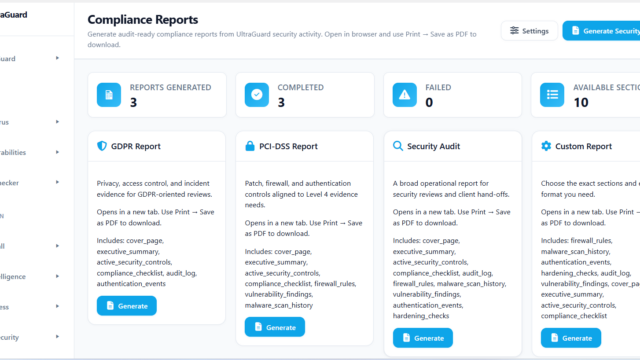
UltraGuard generates four distinct report types, each assembling a different set of sections from your site’s security data.
GDPR Report
The GDPR report is built for privacy and data protection reviews. It focuses on the controls that matter most to a data protection officer or privacy auditor: who can access the system, what authentication is in place, what security events have been logged, and what controls are actively protecting personal data.
Default sections included:
- Cover Page
- Executive Summary (with security score and incident count)
- Active Security Controls inventory
- Compliance Checklist (GDPR-aligned requirements)
- Audit Log data (logins, failed attempts, settings changes)
- Authentication Events
Example use case: Your company processes customer orders and stores names, email addresses, and delivery details. A data protection authority asks for evidence that you have appropriate technical measures in place. You generate a GDPR report, which shows your active firewall, login protection settings, two-factor authentication status, and a full audit log of system access — all in one formatted document.
PCI-DSS Report
The PCI-DSS report is oriented toward payment security. It assembles evidence of patch management, firewall configuration, authentication controls, and vulnerability management — the technical pillars of PCI compliance for WordPress-based stores.
Default sections included:
- Cover Page
- Executive Summary
- Active Security Controls inventory
- Compliance Checklist (PCI-DSS-aligned requirements)
- Firewall Rules (your current WAF configuration)
- Vulnerability Findings (from the Vulnerability Scanner module)
- Malware Scan History
Example use case: Your WooCommerce store is going through a Level 4 merchant self-assessment questionnaire. Your acquiring bank or payment service provider asks for evidence of technical controls. You generate a PCI-DSS report that documents your firewall rules, shows your malware scan history is clean, and confirms your vulnerability scanner found no unpatched critical CVEs in your installed plugins.
Security Audit Report
The Security Audit report is the broadest of the four types — a comprehensive operational report suitable for security reviews, client hand-offs, and internal governance. It pulls the widest range of sections across all UltraGuard modules.
Default sections included:
- Cover Page
- Executive Summary
- Active Security Controls inventory
- Compliance Checklist
- Audit Log
- Firewall Rules
- Malware Scan History
- Vulnerability Findings
- Authentication Events
- Hardening Checks
Example use case: A web agency has finished building and securing a client’s WordPress site. Before handover, they generate a Security Audit report. The report shows every security module that is active, the firewall rules in place, the results of the malware scan, any vulnerabilities found and patched, and the hardening measures applied. The client receives a professional document they can file, and the agency has a dated record of the site’s security posture at handover.
Custom Report
The Custom Report type lets you select exactly which sections to include. All available sections across every module that contributes compliance data are listed — you tick the ones you want and generate.
Example use case: An ISO 27001 auditor asks specifically for evidence of your change management and access control procedures. You create a Custom Report that includes only the Audit Log (which records every settings change, login, and admin action) and the Active Security Controls inventory — skipping the firewall rules and scan history that are not relevant to the audit question.
What Goes Inside a Report
Every report, regardless of type, follows the same professional layout and always includes the same foundational elements.
Cover Page
The cover page shows your organisation name, the site URL, the report title, the reporting period (date range), the date and time of generation, and the name of the person who generated it. If you have uploaded a logo, it appears on the cover page too.
Executive Summary
A high-level dashboard summary showing three key numbers: the site’s current security score, the number of critical issues found during the reporting period, and the total number of security incidents recorded. This is the section a non-technical manager, director, or auditor reads first.
Active Security Controls
A table listing every major security module and its current status — Active or Unavailable. The modules checked are: Firewall, WordPress Hardening, Security Headers, Antivirus, Vulnerability Scanner, Login Limiter, and Authenticator. This section answers the question “what protection does this site have in place?”
Compliance Checklist
A checklist of requirements relevant to the report type, each marked as Pass, Partial, or Fail. For GDPR this covers security event logging, access protection, and incident visibility. For PCI-DSS it covers patch management, authentication controls, and ongoing monitoring. For Security Audit it covers hardening baseline, threat detection, and vulnerability review.
Sections Contributed by Other Modules
The Compliance Reports module is designed as a hub. Other UltraGuard modules hook into it and contribute their own data sections. This means the report is always assembled from live, real data — not a static template.
The modules that currently contribute sections are:
Firewall — contributes a Firewall Rules section showing active blocking rules, how many rules are in blocking mode, and a table of recent blocked requests including IP addresses, block reasons, and threat levels.
Antivirus — contributes a Malware Scan History section showing past scan results, files scanned, threats detected, and quarantine actions taken.
Vulnerability Scanner — contributes a Vulnerability Findings section listing known CVEs detected in your installed plugins, themes, and WordPress core, along with whether virtual WAF patches were applied.
Audit Log — contributes a full activity trail section showing logins, failed login attempts, settings changes, and plugin events within the reporting period.
Authenticator — contributes an Authentication Events section showing two-factor authentication and passkey usage.
Hardening — contributes a Hardening Checks section confirming which best-practice hardening measures are active (XML-RPC disabled, version exposure removed, sensitive files protected, and so on).
The Report Output: HTML with Print-to-PDF
Every report is generated as a clean, professionally formatted HTML document. When you click “Print / Download PDF” on a report in the dashboard, the report opens in a new browser tab with a print toolbar at the top. The browser print dialog opens automatically. From there you choose “Save as PDF” to create a permanent PDF document you can email, file, or attach to an audit submission.
This approach works on every browser and operating system without any additional software. The generated HTML is styled for print — A4 page size, proper margins, page breaks that avoid splitting tables in awkward places, and colour-accurate output that preserves the badge colours and table formatting.
The print toolbar includes a Print / Save as PDF button, a Close button, and a link back to the reports dashboard.
Automation: Monthly Reports Without Lifting a Finger
For sites that need regular compliance documentation, UltraGuard can generate a Security Audit report automatically at the end of every month.
When you enable Auto-generate monthly security audit report in the settings, UltraGuard schedules a WordPress cron job that fires once a month. It automatically sets the date range to the previous calendar month, generates the full Security Audit report, and saves it to your reports history.
If you also enable Email monthly report to admin, the generated report is attached to an email and sent to your configured contact address automatically — so your compliance record arrives in your inbox without any manual steps.
Branding and Customisation
Every report carries your organisation’s identity, not generic placeholder text. The settings panel lets you configure:
Organisation Name — appears in the report header and cover page. Defaults to your WordPress site name.
Contact Name and Email — the responsible person’s details, shown on the cover page. Useful for auditors who need to know who to contact about the report.
Logo — paste a media URL for your organisation logo and it appears on the cover page of every report.
Watermark Text — enter a word like CONFIDENTIAL or DRAFT and it appears as a large diagonal watermark across every page of the report. Useful when sharing draft reports internally before finalisation.
Include Raw Log Data — when enabled, detailed raw log entries are included in the applicable sections. This makes reports larger but more granular, which is useful for deep technical audits. Disabled by default because it can substantially increase file size.
How to Generate Your First Report
Getting a compliance report takes about thirty seconds.
- In your WordPress admin, navigate to UltraGuard → Compliance Reports
- Choose one of the four report type cards: GDPR, PCI-DSS, Security Audit, or Custom
- Click Generate on the card
- UltraGuard collects data from all active modules and builds the report — this usually takes a few seconds
- The page refreshes and a new row appears in the Generated Reports table
- Click Print / Download PDF on that row — the report opens in a new tab and the print dialog appears automatically
- In the print dialog, select Save as PDF as the destination
For agencies generating reports regularly, the Generate Security Audit button at the top of the page creates a full audit report for the current month’s date range with a single click.
Where Reports Are Stored
Generated reports are saved as HTML files in your WordPress uploads directory, under wp-content/uploads/ultraguard-reports/. Each file is named after the report title and report ID, for example security-audit-report-42.html.
The reports list in the dashboard shows the file size, generation date, date range, who generated the report, and its current status (Generating, Complete, or Failed). Up to 25 recent reports are shown in the dashboard. Individual reports can be deleted from the dashboard when they are no longer needed.
Security of the Reports Themselves
Because compliance reports can contain sensitive security data, access is carefully controlled.
Only users with manage_options capability (administrators) can generate, view, or download reports. Every report view and download is verified with a WordPress nonce — a secure one-time token that prevents unauthorised access. The print view URL is also nonce-protected, so even if a report URL is guessed, it cannot be accessed without a valid admin session and matching nonce.
The report files are stored inside the WordPress uploads directory. UltraGuard validates that any file it serves is actually inside that directory before serving it — a protection against path traversal attacks that could otherwise trick it into serving arbitrary files from the server.
Compliance Reports Is a Pro Feature
The Compliance Reports module is part of UltraGuard Pro. It requires an active Pro or Agency licence.
You can preview the module interface in the free version — the dashboard, report cards, and settings are all visible — but report generation requires an active licence. The preview mode shows sample generated reports to illustrate what the output looks like.
Pro — $149/year (1 site) — includes Compliance Reports along with all other Pro modules.
Agency — $399/year (up to 20 sites) — includes everything in Pro across your full client portfolio. Particularly useful for agencies that need to provide compliance documentation to multiple clients.
Summary
| What You Need | How UltraGuard Delivers It |
|---|---|
| GDPR audit evidence | GDPR Report with audit log, access controls, and authentication events |
| PCI-DSS Level 4 evidence | PCI-DSS Report with firewall rules, vulnerability findings, and scan history |
| Client security handover document | Security Audit Report covering all active modules |
| Custom evidence for specific requirements | Custom Report with section picker |
| Automated monthly documentation | Auto-generate monthly report with optional email delivery |
| Branded, professional output | Organisation name, logo, contact details, and optional watermark |
| Downloadable PDF | HTML report with browser Print → Save as PDF |
| No manual data gathering | All data pulled live from UltraGuard’s own modules |
A professional, dated, formatted compliance report that would have taken hours to assemble manually — generated in seconds, directly from your site’s real security data.
View Pro Plans → Download UltraGuard Free →
UltraGuard Compliance Reports is part of UltraGuard Security Suite v6.7.2. Requires a Pro or Agency licence. WordPress 5.6+ and PHP 8.1+ required.