
You have spent time and money securing your WordPress site. You have a firewall running, a malware scanner doing daily checks, login protection in place, and security headers on every page.
But here is the question nobody asks until it is too late:
Can you prove it?
When a client asks for evidence that their site is secure before signing a contract, when an auditor asks for documentation of your security controls, when your bank asks for PCI compliance evidence before approving a payment gateway — “yes, we use a security plugin” is not an answer anyone will accept.
A compliance report is that proof. It is a formatted, dated, professional document that assembles your site’s real security activity — what is running, what it has found, what it has blocked, and what controls are in place — into something a person outside your WordPress dashboard can actually read, understand, and sign off on.
UltraGuard Pro generates these reports in seconds. This article explains how the process works, what goes into each report, and the specific situations where having one makes a real difference.
Who Needs Compliance Reports?
Before getting into the mechanics, it is worth being specific about who actually needs this — because the answer is broader than most site owners expect.
WooCommerce store owners processing card payments have obligations under PCI-DSS (the Payment Card Industry Data Security Standard). Even small merchants are expected to demonstrate that they have basic security controls in place — a firewall, patch management, authentication controls, and monitoring. UltraGuard can generate a report specifically aligned to these requirements.
Businesses handling personal data from EU residents need to demonstrate GDPR compliance. Article 32 of GDPR requires “appropriate technical measures” to protect personal data. A GDPR compliance report showing your active security controls, access logs, and authentication events is exactly the kind of evidence a Data Protection Officer or regulator would ask for.
Web agencies and freelancers handing off completed sites to clients increasingly need to deliver security documentation alongside the site itself. A professionally formatted security audit report with your agency’s name on it shows the client what is protecting their site — and gives you a dated, signed-off record that the site was secure at handover.
Businesses going through procurement or insurance reviews are regularly asked to complete security questionnaires or provide evidence of controls. A one-click report from UltraGuard covers the majority of what these questionnaires ask about.
Any site owner who wants a regular record of their security posture can use UltraGuard’s monthly auto-generation feature to create a Security Audit report at the end of every month automatically, building a historical archive without any manual effort.
The Four Report Types
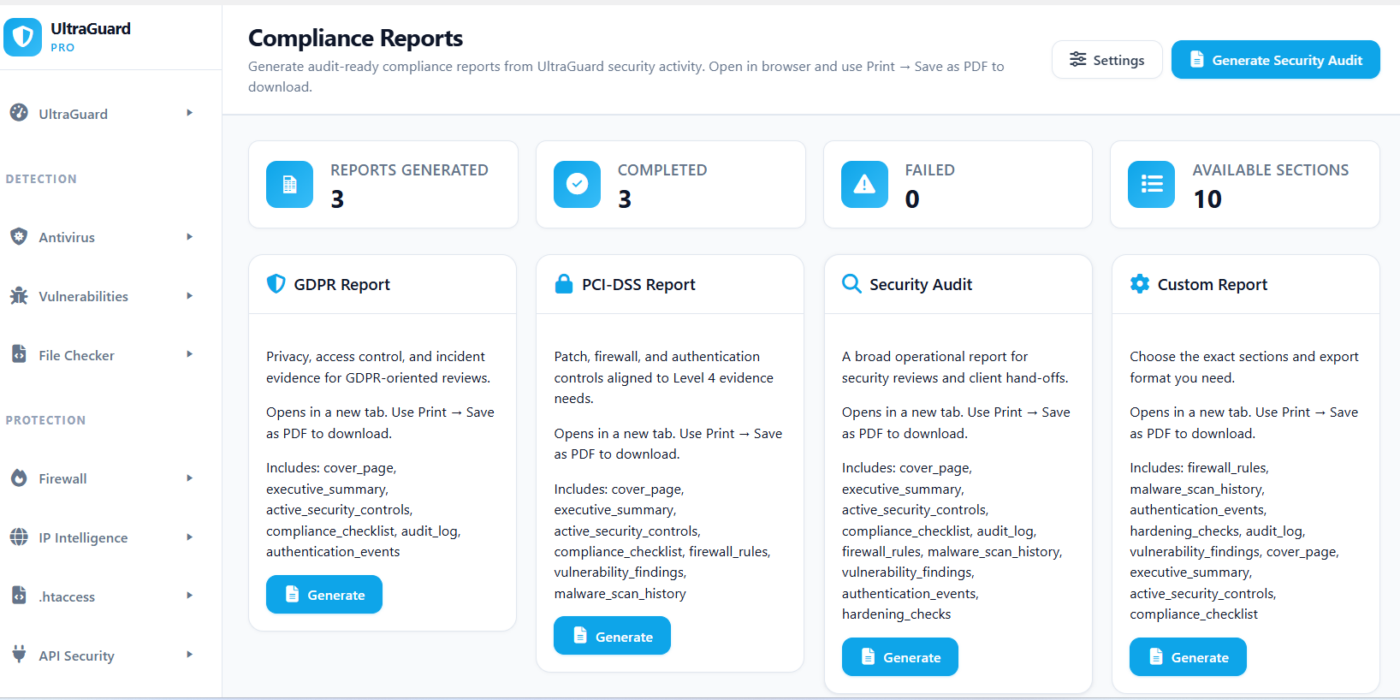
UltraGuard generates four distinct types of report, each assembling a different set of data sections depending on what the report is for.
GDPR Report
Built for privacy reviews and data protection evidence. The GDPR report focuses on the controls most relevant to a Data Protection Officer or privacy auditor: who can access the system, what authentication is in place, what security events have been logged, and what controls are actively protecting data.
Includes by default: Cover page, Executive Summary, Active Security Controls, GDPR Compliance Checklist, Audit Log entries, and Authentication Events.
Best used when: A client or regulator asks for evidence that your site handles personal data securely. Also useful for completing GDPR Article 30 records of processing activities.
PCI-DSS Report
Built for payment security evidence. The PCI-DSS report assembles evidence of the technical controls that matter to a payment card auditor: firewall configuration, patch management, vulnerability management, and malware scanning history.
Includes by default: Cover page, Executive Summary, Active Security Controls, PCI-DSS Compliance Checklist, Firewall Rules, Vulnerability Findings, and Malware Scan History.
Best used when: Your payment gateway, acquiring bank, or card scheme asks for evidence of technical security controls for a Level 4 merchant self-assessment. Also useful for completing a SAQ-A-EP or SAQ-D questionnaire.
Security Audit Report
The broadest report type — a comprehensive operational summary covering all active security modules. This is the all-purpose report for general security reviews, client hand-offs, and internal governance.
Includes by default: Cover page, Executive Summary, Active Security Controls, Compliance Checklist, Audit Log, Firewall Rules, Malware Scan History, Vulnerability Findings, Authentication Events, and Hardening Checks.
Best used when: You are handing off a site to a client, presenting a security review to management, or creating a periodic record of your site’s security posture for your own records.
Custom Report
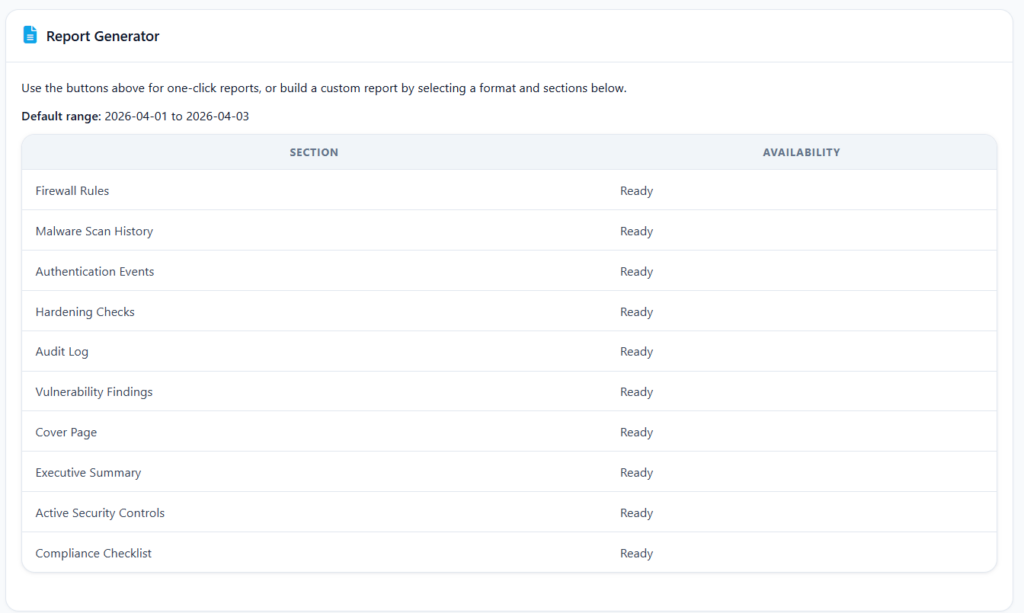
Lets you select exactly which sections to include. Every section that any UltraGuard module contributes is listed — you tick the ones relevant to your specific situation.
Best used when: An auditor or client has asked for specific evidence rather than a full report. For example, if you only need to show your firewall configuration and scan history, you generate a Custom Report with just those two sections.
How a Report Is Generated — Step by Step
Understanding how the report is built helps you trust what it contains. Here is exactly what happens from the moment you click Generate to the moment you have a PDF in your hands.
Step 1: You Click Generate
From UltraGuard → Compliance Reports, you click the Generate button on any of the four report type cards. You can also use the Generate Security Audit button at the top of the page for a one-click full audit report covering the current month to date.
Step 2: UltraGuard Records the Report Request
A record is created in the database immediately, marked with status generating. This record stores the report type, title, date range, who triggered the generation, and which sections were requested.
Step 3: Data Is Collected From Every Active Module
This is where the report gets its content. UltraGuard uses a hook-based data collection system — each security module that has compliance data to contribute responds to a collection request and provides its data. No data is fabricated or estimated. Everything in the report is pulled directly from UltraGuard’s own database tables, which have been built up by the modules running on your site.
The modules that contribute data to compliance reports are:
The Compliance Reports module itself contributes four core sections present in every report:
- Cover Page — your organisation name (from settings), site URL, report title, date range, generation timestamp, and the name of the person who generated it
- Executive Summary — a high-level dashboard showing your security score, the number of critical issues found during the reporting period, and the total incident count
- Active Security Controls — a table showing every major security module (Firewall, Hardening, Security Headers, Antivirus, Vulnerability Scanner, Login Limiter, Authenticator) and whether it is currently active
- Compliance Checklist — a pass/partial/fail checklist of requirements specific to the report type (GDPR, PCI-DSS, or general security audit)
The Firewall module contributes:
- Total number of active firewall rules
- How many rules are in blocking mode
- A table of recent blocked requests with IP addresses, block reasons, and threat levels
The Antivirus module contributes:
- Total scan results, infected file count, critical findings, and quarantine items
- A table of the 15 most recent scan findings with file path, status, threat type, threat level, and timestamp
The Vulnerability Scanner module contributes:
- CVEs detected in installed plugins, themes, and WordPress core
- Whether virtual WAF patches were applied for each finding
The Audit Log module contributes:
- Total event count, user event count, and security event count
- The 20 most recent audit log entries with action, entity type, user ID, IP address, and timestamp
The Authenticator module contributes:
- Two-factor authentication and passkey usage events during the reporting period
The Hardening module contributes:
- A checklist of all hardening measures showing how many are enabled, the total available, and the percentage score
Step 4: The Report Is Rendered as HTML
Once all data has been collected, UltraGuard assembles it into a clean, professionally formatted HTML document. The document includes:
- A branded header with the UltraGuard shield icon and your organisation name
- A metadata block showing organisation, site URL, report period, generation time, and contact details
- Each data section rendered as readable tables and summaries
- Colour-coded status badges (green for Pass, amber for Partial, red for Fail)
- A footer showing the site URL and generation timestamp
- If you have configured a watermark (such as “CONFIDENTIAL”), it appears as a large diagonal text across every page
The HTML is styled specifically for print — A4 page size, proper margins, page breaks that avoid splitting tables mid-row, and colour-accurate output that preserves badge colours in print.
If you have configured your organisation logo in the settings, it appears on the cover page.
Step 5: The File Is Saved
The generated HTML file is saved to your server at wp-content/uploads/ultraguard-reports/, named after the report title and report ID. For example: security-audit-report-42.html. The database record is updated to complete status with the file path and file size.
Step 6: You Print or Save as PDF
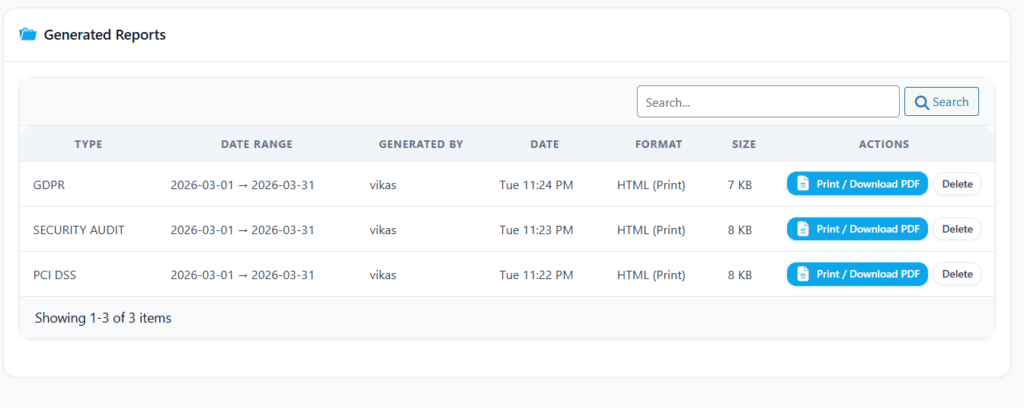
The report appears in the Generated Reports table. Clicking Print / Download PDF opens the report in a new browser tab. A print toolbar appears at the top of the page with a “Print / Save as PDF” button. Clicking it opens your browser’s standard print dialog.
In the print dialog, set the destination to Save as PDF. The browser handles the PDF conversion natively — no additional software is needed, and the output is a properly formatted A4 PDF with accurate colours, tables, and page breaks. This approach works identically on Windows, macOS, and Linux, in any modern browser.
What a Report Actually Looks Like
Every report starts with the same professional structure regardless of type.
At the top is the report header: the UltraGuard shield icon on the left, the report title and your organisation name on the right, separated from the body by a bold blue rule.
Below the header is the metadata block: a two-column grid showing Organisation, Site URL, Report Period (date range), Generated timestamp, Generated By (the admin user who clicked Generate), and Contact details if configured.
Then the sections follow, each introduced by a bold heading with a separator line. Data is presented as tables where there are multiple rows (scan results, firewall rules, audit log entries), or as key-value pairs for summaries (total files scanned, threats found, score percentage).
Status values — Pass, Partial, Fail, Active, Unavailable — are colour-coded in green, amber, and red respectively, so the visual state of each item is immediately clear without reading the text.
The report closes with a footer showing the site URL and exact generation time.
Automated Monthly Reports
For sites that need ongoing compliance documentation without manual effort, UltraGuard can generate a Security Audit report automatically at the end of every month.
When you enable Auto-generate monthly security audit report in Compliance Reports settings, a WordPress scheduled job fires once a month. It automatically sets the date range to the previous complete calendar month, generates the full Security Audit report from live data, and saves it to your reports history.
If you also enable Email monthly report to admin, the completed report is attached to an email and delivered to your configured contact address automatically. You receive a formatted compliance record in your inbox every month without logging in to WordPress at all.
This is the feature that makes ongoing compliance effortless for agencies managing multiple client sites or businesses with regular audit requirements.
Branding the Reports With Your Organisation’s Identity
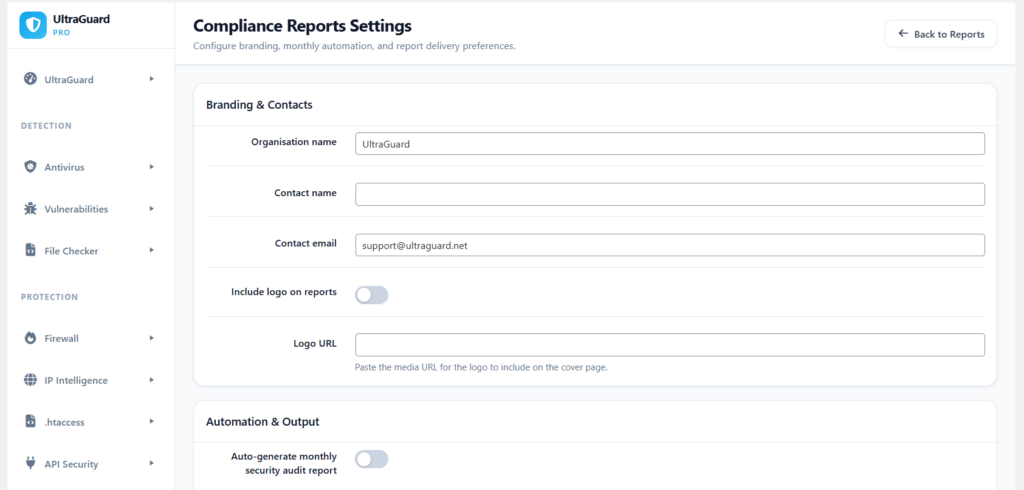
Every report carries your organisation’s identity, not generic placeholder text. The settings panel lets you configure:
Organisation Name — appears in the report header and cover page. Defaults to your WordPress site name. Agencies should set this to their client’s organisation name before generating a report for that client.
Contact Name and Email — displayed on the cover page so auditors know who to contact with questions about the report.
Logo — paste the media URL for your logo and it appears on the cover page of every report.
Watermark — enter a word such as CONFIDENTIAL or DRAFT and it appears diagonally across every page. Useful for internal review copies that have not yet been finalised.
Include Raw Log Data — when enabled, detailed raw log entries are included in the applicable sections. This increases file size but adds granularity that some technical auditors require.
Where Reports Are Stored and How to Manage Them
Generated reports are saved as HTML files in your WordPress uploads directory at wp-content/uploads/ultraguard-reports/. The directory is private — UltraGuard does not generate a public URL for report files, and access is gated by WordPress admin authentication and nonce verification on every view.
The reports table in the dashboard shows up to 25 recent reports, each with:
- Report title and type
- Date range covered
- Who generated it
- When it was generated
- File size
- Status (Complete or Failed)
- Print / Download PDF button
- Delete button
Old reports can be deleted from the dashboard when they are no longer needed. Deleting a report removes both the database record and the HTML file from the server.
Security of the Reports
Compliance reports contain security data — blocked IP lists, scan findings, vulnerability details, and user access records. UltraGuard handles this with care.
Only users with manage_options capability (site administrators) can generate, view, or download reports. Every report view is verified with a WordPress nonce — a cryptographic one-time token tied to the current admin session. A report URL shared outside the admin session is not accessible.
Before serving any report file, UltraGuard verifies that the file path is genuinely inside the uploads directory — a protection against path traversal attacks. The report file directory has no public index, and UltraGuard does not generate publicly accessible download URLs for reports.
A Practical Walkthrough: Agency Handing Off a Client Site
Here is how a web agency might use Compliance Reports in a real handover scenario.
You have just finished building and securing a WooCommerce store for a client. The client is nervous about security — they have heard stories about payment card breaches and want to know what is actually protecting their site before they start taking orders.
Before the meeting:
- Go to UltraGuard → Compliance Reports → Settings
- Set Organisation Name to the client’s company name
- Enter the client’s contact name and email
- Upload the client’s logo
- Set the watermark to blank (this is a final report, not a draft)
Generate the report:
- Click the PCI-DSS Report card → Generate
- UltraGuard collects live data from the Firewall, Antivirus, Vulnerability Scanner, Hardening, and Audit Log modules
- The report appears in the table within a few seconds
- Click Print / Download PDF → Save as PDF
In the meeting: You share the PDF. The client sees:
- Their company name and logo on the cover page
- An Executive Summary with a security score
- A table showing every active security control
- A PCI-DSS compliance checklist with pass/fail status
- Their firewall rules — 35+ blocking rules active
- Malware scan history — all clean
- Vulnerability findings — no unpatched CVEs in installed plugins
The client has a professional document they can file. You have a dated record that the site was secure at handover. If a dispute arises later, you have evidence.
After handover: Enable monthly auto-generation and email delivery. The client receives a security report every month automatically, and you have an ongoing record of the site’s security posture without any manual work.
Compliance Reports Is a Pro Feature
The Compliance Reports module is part of UltraGuard Pro.
Pro — $149/year (1 site) All four report types, monthly auto-generation, email delivery, branding and logo, all data sections from all contributing modules, up to 25 stored reports.
Agency — $399/year (up to 20 sites) Everything in Pro across your entire client portfolio. Generate branded compliance reports for each client from a single licence.
The free version shows a preview of the dashboard and sample reports so you can see what the output looks like before upgrading.
Summary
| What You Need | What UltraGuard Delivers |
|---|---|
| Evidence of security controls for GDPR | GDPR Report with audit log, access controls, authentication events |
| PCI-DSS Level 4 merchant evidence | PCI-DSS Report with firewall rules, scan history, vulnerability findings |
| Client handover security documentation | Security Audit Report covering all active modules |
| Custom evidence for specific requirements | Custom Report with section picker |
| Ongoing monthly compliance record | Auto-generate monthly report with optional email delivery |
| Branded, professional output | Organisation name, logo, contact, watermark |
| Downloadable PDF | HTML report — browser Print → Save as PDF |
| Accurate, live data | Everything pulled directly from UltraGuard’s own security modules |
| Secure access to reports | Admin-only, nonce-verified, path-traversal protected |
The gap between running security tools and being able to prove your site is secure is the gap that Compliance Reports closes. One click, seconds to generate, and you have a document that answers every question an auditor, client, or regulator is likely to ask.
View Pro Plans → Download UltraGuard Free →
UltraGuard Compliance Reports is part of UltraGuard Security Suite v6.7.2. Requires a Pro or Agency licence. WordPress 5.6+ and PHP 8.1+ required.