Most people think about WordPress security the same way they think about a burglar alarm: you install it, and if someone tries to break in, it goes off.
That model works for some threats. A firewall blocks known attack patterns. A malware scanner finds infected files. A login limiter stops brute-force attempts. These are reactive tools — they respond to attacks as they happen.
Security hardening is different. It is not about responding to attacks. It is about removing the opportunities for attacks to succeed in the first place.
Think of it this way. A burglar alarm protects your home after someone tries to get in. But if you leave a spare key under the doormat, leave a first-floor window unlocked, and have your house number painted in glow-in-the-dark paint so it is visible from the street at night — the alarm is already working against a disadvantage you created by not taking basic precautions.
WordPress ships with a number of features and default behaviours that are useful in some contexts but create unnecessary risk in most production environments. Security hardening is the process of systematically disabling those features, restricting those behaviours, and removing information from your site that attackers use to plan and execute attacks.
None of the hardening measures in UltraGuard require advanced technical knowledge. Every one of them is a toggle in the dashboard. But the effect of enabling them properly can be the difference between a site that looks like a hardened target and one that looks like an easy opportunity.
This article explains what each hardening measure does, what attack it prevents, and why you should care — in plain English, with no assumed technical background.
The Security Audit: Know Your Score Before You Start
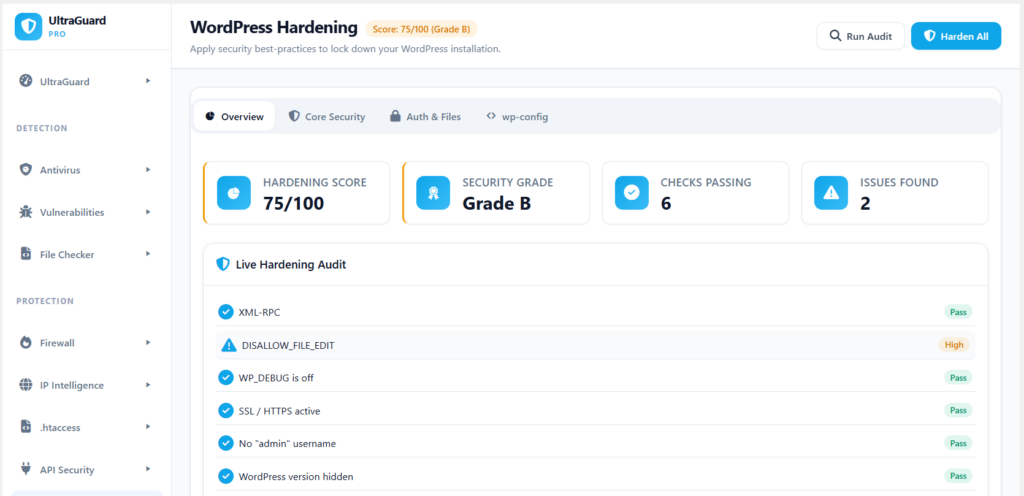
Before changing any settings, UltraGuard’s Hardening module runs a live audit of your site’s current state. The audit checks eight conditions and scores your site from 0 to 100, assigning a letter grade (A through F) based on the results.
The scoring is weighted by severity — critical issues cost more points than low-severity ones:
| Severity | Points |
|---|---|
| Critical | 25 points |
| High | 15 points |
| Medium | 8 points |
| Low | 4 points |
A score of 90 or above earns a Grade A. 75–89 is a Grade B. 60–74 is Grade C. 40–59 is Grade D. Below 40 is Grade F.
The audit results are displayed as a live checklist showing which checks are passing (green tick) and which are failing (amber warning with severity label). Each failing check shows a description of why it matters. This gives you an instant picture of where your site stands and what needs attention.
You can run the audit at any time with the Run Audit button. The score and grade update in real time as you save changes.
The Eight Hardening Checks
These are the conditions the audit checks — and what UltraGuard does to fix each one.
1. XML-RPC Disabled (High Severity)
What XML-RPC is: XML-RPC is an old remote procedure call protocol built into WordPress. It was originally designed to let desktop blogging tools (like Windows Live Writer) publish posts to WordPress remotely. Today it is also used by some mobile apps and by the Jetpack plugin.
Why it is a security problem: XML-RPC is one of the most abused attack surfaces in WordPress. Because it accepts usernames and passwords, it is a target for brute-force attacks — but unlike the regular login page, it can process hundreds of username/password combinations in a single request (a technique called XML-RPC amplification). It is also the mechanism behind pingback-based DDoS attacks, where your site is used as a tool to flood someone else’s server with traffic.
If you are not using a mobile app to post to WordPress, not using Jetpack, and not relying on any other XML-RPC client, you almost certainly do not need XML-RPC. Most modern WordPress sites have no reason for it to be active.
What UltraGuard does: When enabled, it uses WordPress’s xmlrpc_enabled filter to return false, disabling XML-RPC completely. This works alongside any .htaccess rules that block access to xmlrpc.php at the server level, providing two layers of protection.
Example of the attack prevented: A bot sends a single POST request to xmlrpc.php containing 100 different username/password combinations nested in a system.multicall request. Without XML-RPC disabled, WordPress processes all 100 attempts in one go — bypassing any per-request login limits. With XML-RPC disabled, the request is rejected before WordPress processes a single combination.
2. WordPress Version Hidden (Medium Severity)
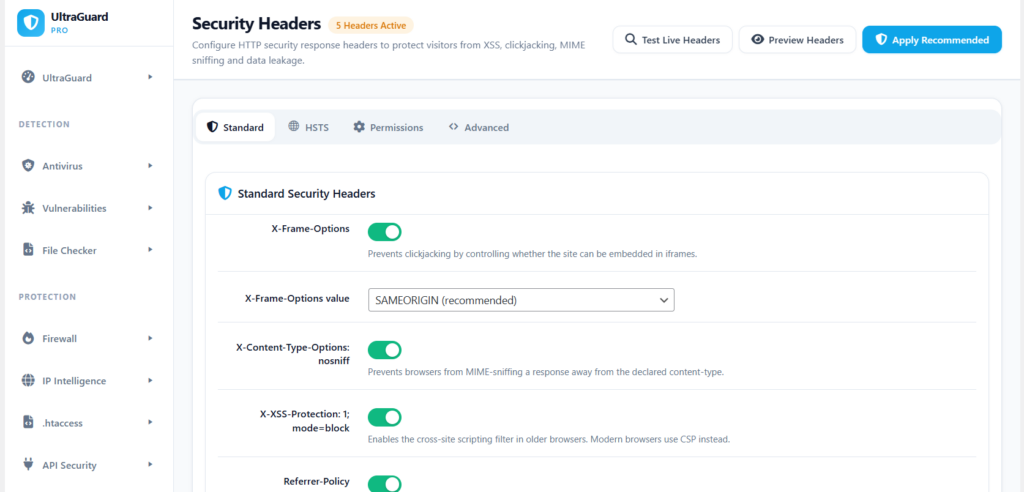
What this is: By default, WordPress includes its version number in several places visible to the public: a <meta name="generator" content="WordPress 6.7.2"> tag in the HTML source of every page, RSS feed headers, and as a ?ver= query parameter on every CSS and JavaScript file your site loads.
Why it is a problem: Attackers looking for sites to compromise do not attack randomly. They probe sites to determine what version of WordPress is running, then check whether that version has known vulnerabilities. Knowing you are running WordPress 6.5.2 (for example) tells an attacker exactly which CVEs apply to your site and which exploits might work against it. Version exposure turns reconnaissance into a much faster and more precise process.
What UltraGuard does: It removes the wp_generator action from wp_head (which removes the meta tag), filters the_generator to return an empty string (which removes the version from RSS feeds), and strips the ver= query parameter from every stylesheet and script URL your site loads.
Example of the attack prevented: An automated scanner hits your site and finds <meta name="generator" content="WordPress 6.4.1">. It cross-references this against a known vulnerability list and finds an unpatched SQL injection in that version. It adds your site to its attack queue. With the version hidden, the scanner sees no generator tag, no version in the source code, and moves on.
3. SSL / HTTPS Active (Critical Severity)
What this is: HTTPS (the padlock in your browser’s address bar) encrypts all traffic between your visitors and your server. HTTP transmits everything in plain text.
Why it is critical: When your admin panel runs over HTTP, every time you log in, your username and password travel across the internet as plain, readable text. Anyone on the same network — at a coffee shop, at an airport, at a co-working space — can intercept this traffic with widely available tools and read your credentials directly.
This is classified as Critical because it is not a theoretical risk — it is a practical one that requires no special skill to exploit on shared networks.
What UltraGuard does: If you enable Force HTTPS for Admin, UltraGuard defines FORCE_SSL_ADMIN = true at runtime, which forces WordPress to require HTTPS for all admin and login traffic. The audit also checks whether SSL is currently active via the server environment.
Example of the attack prevented: You log in to your WordPress admin from a hotel Wi-Fi connection over HTTP. Someone at the same hotel running a network monitoring tool captures your login request and reads your username and password directly from the packet. With HTTPS enforced, the traffic is encrypted — the intercepted packets are unreadable without the private key.
4. No “admin” Username (Critical Severity)
What this is: WordPress historically created a default admin account with the username admin. Many older WordPress installations still have this account. Many new users create it out of habit.
Why it is critical: Every brute-force attack against WordPress tries admin as the first username. By using admin, you have already given attackers half of the information they need to get in — they only need to guess the password. With a non-obvious username, an attacker has to discover your username first before they can begin guessing passwords, which substantially increases the difficulty of a successful attack.
What UltraGuard does: The audit checks whether a user with the login name admin exists in your WordPress database. If it does, the check fails. UltraGuard does not automatically rename the account (that would be too risky to do without your knowledge), but the audit surfaces this as a Critical issue so you know to address it manually.
How to fix it: In WordPress, go to Users → All Users, create a new administrator account with a different, non-obvious username, log in with the new account, and delete the admin account, reassigning its content to the new user.
5. DISALLOW_FILE_EDIT (High Severity)
What this is: WordPress includes a built-in code editor in the admin panel that lets you edit the source code of installed plugins and themes directly from the browser.
Why it is a problem: If an attacker ever gains access to your admin panel — through a stolen password, a session hijack, or any other means — this editor gives them the ability to inject malicious code into your plugins or themes in seconds, without any server access. It is a one-click code execution capability sitting in your admin dashboard.
On a production website, there is almost never a good reason for this editor to be active. You should be editing theme and plugin files in a development environment and deploying changes through a proper workflow, not editing live production files in a browser.
What UltraGuard does: When enabled, it sets DISALLOW_FILE_EDIT = true at runtime, which disables the plugin and theme code editors in the admin panel. The menu items disappear entirely from Appearance and Plugins.
Example of the attack prevented: An attacker compromises an admin account through a phishing email. They log in to the WordPress dashboard, navigate to Appearance → Theme Editor, and add a PHP backdoor to the active theme’s functions.php file. They now have persistent server access even after the password is changed. With DISALLOW_FILE_EDIT enabled, the Theme Editor does not exist — they cannot make this change.
6. WP_DEBUG is Off (High Severity)
What this is: WordPress has a debug mode (WP_DEBUG = true in wp-config.php) that displays PHP errors, notices, and warnings on screen. It is invaluable during development but should never be active on a live production site.
Why it is a problem: When debug mode is on, PHP errors are displayed publicly. These error messages often contain the full file path of the affected file (revealing your server’s directory structure), the names of database tables, partial contents of variables, and sometimes database connection details. This information is extremely useful to attackers mapping out your installation.
What UltraGuard does: The audit checks whether WP_DEBUG is defined and set to true. If it is, the check fails with a High severity warning. UltraGuard does not automatically change your wp-config.php (modifying that file automatically could break things), but it surfaces the issue clearly and prominently.
How to fix it: Open your wp-config.php file and ensure define('WP_DEBUG', false); or remove the line entirely. On a live production site, debug mode should always be off.
7. wp-config.php Permissions ≤ 640 (High Severity)
What this is: wp-config.php is the most sensitive file on your WordPress server. It contains your database hostname, database name, database username, and database password — everything an attacker needs to access and control your database directly.
Linux file permissions control who can read, write, and execute files. A permission setting of 640 means: the owner can read and write the file, the group can read it, and everyone else cannot access it at all. A permission of 644 (a common default) means everyone on the server can read it — including other users on shared hosting.
Why it matters on shared hosting: Many WordPress sites are hosted on shared hosting accounts where multiple customers’ sites run on the same server. If your wp-config.php has world-readable permissions, other tenants on the same server could read it and access your database.
What UltraGuard does: The audit checks the last digit of the file permission octal — if it is not 0 (meaning no permissions for others), the check fails. UltraGuard reports this as a High severity finding.
How to fix it: In your hosting control panel’s file manager, or via FTP/SSH, right-click wp-config.php and set permissions to 640 (or even 600 for maximum restriction).
8. RSD / WLW Meta Removed (Low Severity)
What this is: WordPress includes two <link> tags in every page’s <head> section: one pointing to the Really Simple Discovery (RSD) API endpoint, and one pointing to the Windows Live Writer (WLW) manifest. Both are legacy features from the era of desktop blogging clients.
Why it matters: These link tags advertise service endpoints to anyone who views your page source. They are used by automated scanning tools to quickly identify that a site is running WordPress and to discover API endpoints. While this is the lowest-severity item on the list, removing unnecessary information from your page source is always a sound principle.
What UltraGuard does: It removes the rsd_link and wlwmanifest_link actions from wp_head, eliminating both tags from every page on your site. This also provides a minor page speed benefit since two HTTP requests for these manifests are no longer made by compatible clients.
The Full Settings Reference
Beyond the eight audit checks, UltraGuard’s Hardening module provides additional controls. Here is every available setting:
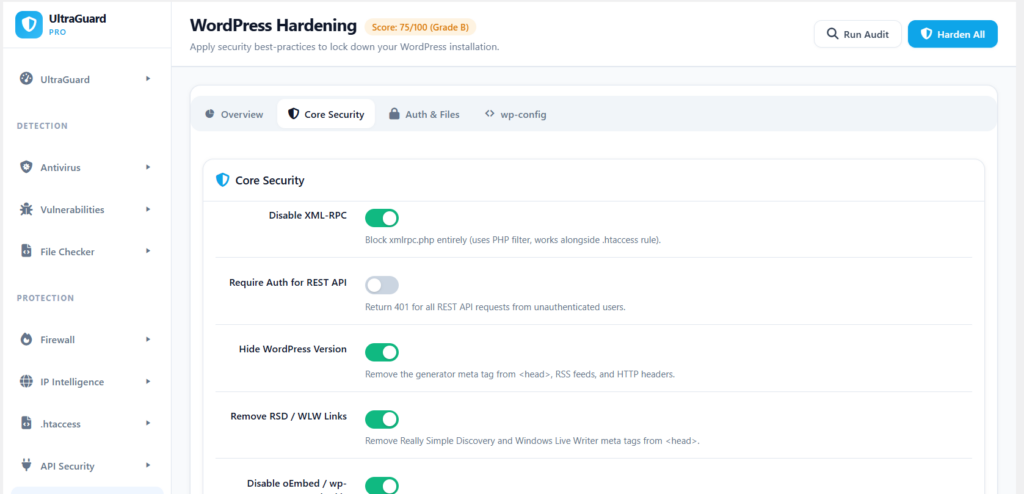
Core Security Tab
| Setting | What It Does | Default |
|---|---|---|
| Disable XML-RPC | Blocks xmlrpc.php entirely at the PHP level | Off |
| Require Auth for REST API | Returns HTTP 401 for all unauthenticated REST API requests | Off |
| Hide WordPress Version | Removes version from <head>, RSS feeds, and asset URLs | Off |
| Remove RSD / WLW Links | Removes legacy discovery meta tags from <head> | Off |
| Disable oEmbed / wp-embed.js | Removes the wp-embed.js script from the footer | Off |
| Disable Pingbacks & Trackbacks | Removes pingback.ping XML-RPC method and hides pingback URL | Off |
Auth & Files Tab
| Setting | What It Does | Default |
|---|---|---|
| Disable File Editing (DISALLOW_FILE_EDIT) | Removes plugin/theme code editors from admin | Off |
| Disable All File Mods (DISALLOW_FILE_MODS) | Prevents plugin/theme installation and updates from admin | Off |
| Force HTTPS for Admin (FORCE_SSL_ADMIN) | Forces login and admin to use HTTPS | Off |
| Block User Enumeration | Redirects /?author=N requests to homepage | Off |
| Hide Login Error Details | Replaces specific error messages with a generic one | Off |
| Disable Application Passwords | Disables WP 5.6+ Application Passwords feature | Off |
Three Settings That Need More Explanation
A few of the settings above deserve a deeper explanation because they are not immediately obvious from their names.
Require Authentication for REST API
What the REST API is: WordPress includes a modern JSON API that allows external applications and JavaScript code running in browsers to interact with your site’s content. It is used by the Gutenberg editor, by mobile apps, and by many plugins.
The security issue: By default, the REST API is accessible to anyone — no login required. This means anyone can query yoursite.com/wp-json/wp/v2/users and get a list of all your registered users, including their usernames. It also exposes information about your posts, pages, categories, and more.
What UltraGuard does: When enabled, it adds a filter to rest_authentication_errors that returns a 401 Unauthorized error to any unauthenticated request. Logged-in users continue to use the REST API normally (the Gutenberg editor, for example, is unaffected). External unauthenticated access is blocked entirely.
When to be careful: If you have a headless WordPress setup, a JavaScript frontend that queries the REST API without authentication, or a plugin that relies on public unauthenticated REST API access, enabling this setting will break that functionality. Test in a staging environment first.
Block User Enumeration
What user enumeration is: WordPress historically allowed anyone to discover the usernames of every account on a site by visiting /?author=1, /?author=2, /?author=3 and so on. Each URL redirects to the profile page of the user with that ID, and the URL of the profile page contains the username. This is called user enumeration.
Why it matters: Username discovery is the first step in a targeted brute-force attack. Once an attacker knows your admin username is vikasbhardwaj rather than admin, they can target that specific username in a brute-force attack. The fewer clues attackers have, the harder targeted attacks become.
What UltraGuard does: It intercepts /?author=N requests on template_redirect and issues a 301 redirect to the homepage — the author page never loads, and no username is revealed. It also removes the /wp/v2/users REST API endpoint for unauthenticated requests, closing the second route through which usernames could be discovered via the REST API.
Hide Login Error Details
What this does: By default, WordPress tells you exactly what went wrong when a login fails. “Invalid username” means the username does not exist. “The password you entered for the username X is incorrect” confirms that the username does exist but the password is wrong.
This is helpful for legitimate users who mistype their details. But it is also helpful for attackers: it tells them which usernames are valid accounts on your site. By trying different usernames, an attacker can build a confirmed list of valid accounts to target in a password attack.
What UltraGuard does: It replaces all specific login error messages with a single generic message that reveals nothing: the error contains no information about whether the username or password was wrong. It also replaces the password reset error message with a generic equivalent, closing the same enumeration vector in the “forgot password” flow.
The wp-config Tab: Live Constant Status
The fourth tab in the Hardening module — wp-config — does not contain settings to change. Instead, it shows the current live status of five important wp-config.php constants, with a green or amber badge indicating whether each is set to the recommended value.
| Constant | What It Controls | Recommended |
|---|---|---|
DISALLOW_FILE_EDIT | Prevents file editing from admin | true |
DISALLOW_FILE_MODS | Prevents all file modifications | Situation-dependent |
FORCE_SSL_ADMIN | Forces HTTPS for admin and login | true |
WP_DEBUG | Enables debug output | false (production) |
WP_AUTO_UPDATE_CORE | Enables automatic core updates | true |
This tab gives you a quick verification that your wp-config.php is correctly configured without having to open the file manually. It shows the actual current value of each constant — not what UltraGuard thinks you should set, but what is actually defined right now in your installation.
Harden All: One Button to Apply Everything
If you want to apply every hardening measure at once without going through settings individually, the Harden All button at the top of the page enables all hardening toggles simultaneously and saves them in a single operation. A confirmation prompt asks you to confirm the action before applying it.
After clicking Harden All, the page reloads and the audit checklist updates to show all applicable checks now passing. The security score and grade update immediately.
What Hardening Is Not
Security hardening reduces your attack surface. It removes information, disables unused features, and closes known weak points. It does not:
- Replace a firewall (which blocks attacks in progress)
- Replace a malware scanner (which finds malicious code already on your server)
- Guarantee your site cannot be compromised
- Fix vulnerable plugins or outdated WordPress core
Hardening is one layer in a complete security posture. It works alongside UltraGuard’s Firewall, Antivirus, Login Limiter, and other modules to create overlapping protection — where an attack that bypasses one layer is stopped by another.
Hardening Is Free
The entire WordPress Hardening module is included in UltraGuard’s free tier. All ten settings, the live audit, the scoring system, the Harden All button, and the wp-config constant monitor — everything described in this article — requires no paid licence.
Download UltraGuard Free → View All Features →
Summary
| Check / Setting | Attack Prevented | Severity |
|---|---|---|
| Disable XML-RPC | Brute-force amplification, DDoS via pingback | High |
| Hide WordPress Version | Targeted exploitation of known version CVEs | Medium |
| Force HTTPS | Credential interception on open networks | Critical |
| No “admin” username | Brute-force with default username | Critical |
| Disable File Edit (DISALLOW_FILE_EDIT) | Code injection via compromised admin account | High |
| WP_DEBUG off | Information disclosure via error messages | High |
| wp-config.php permissions ≤ 640 | Database credential theft on shared hosting | High |
| Remove RSD/WLW links | Site fingerprinting and endpoint discovery | Low |
| Require REST API auth | User enumeration, unauthenticated data access | Medium |
| Block user enumeration | Username discovery for targeted brute-force | Medium |
| Hide login error details | Username confirmation via failed login responses | Medium |
| Disable Application Passwords | Credential theft via REST API client tokens | Medium |
| Disable pingbacks | DDoS amplification, spam | Medium |
| Disable oEmbed | Unnecessary attack surface, page speed | Low |
| Disable file mods (DISALLOW_FILE_MODS) | Plugin/theme installation by compromised admin | High |
Every one of these protections is a toggle. Every toggle is free. The whole hardening module takes under five minutes to configure — and the live score tells you exactly where you stand before and after.
UltraGuard WordPress Hardening is part of the free core of UltraGuard Security Suite v6.7.2. Requires WordPress 5.6+ and PHP 8.1+.