Here is an uncomfortable fact about WordPress security.
The majority of WordPress sites that get hacked are not hacked because of a weak password or a sophisticated zero-day exploit. They are hacked because a plugin the site owner installed months or years ago has a known, documented, publicly disclosed security vulnerability — and the site was never updated to fix it.
These vulnerabilities are catalogued in public databases. Security researchers find them, report them responsibly to plugin authors, and publish them in vulnerability databases that anyone can query. Attackers query those same databases, find sites running the affected plugin version, and exploit them.
The plugin author may have already released a fix. The update may be sitting in your WordPress dashboard right now, waiting to be applied. But until it is, your site is exposed — and you may have no idea.
UltraGuard’s Vulnerability Scanner closes this gap. It checks every plugin, every theme, and WordPress core itself against live CVE databases — then takes the most powerful step possible for vulnerabilities that have no patch yet: it applies a virtual WAF patch that blocks known exploit attempts at the firewall level, protecting your site while you wait for the plugin author to ship a fix.
What Is a CVE?
CVE stands for Common Vulnerability and Exposure. It is the standard identifier for publicly disclosed security vulnerabilities. Every time a security researcher discovers a vulnerability in a piece of software — a WordPress plugin, a PHP library, a theme, or WordPress core itself — it gets assigned a CVE number like CVE-2024-12345.
That CVE record describes the vulnerability, the affected versions, the severity score, and crucially, which version fixed it. This information is public. Security teams use it to know what to patch. Attackers use it to know what to exploit.
The CVSS (Common Vulnerability Scoring System) score attached to each CVE rates its severity on a scale of 0.0 to 10.0:
| CVSS Score | Severity |
|---|---|
| 9.0 – 10.0 | Critical |
| 7.0 – 8.9 | High |
| 4.0 – 6.9 | Medium |
| 0.1 – 3.9 | Low |
A Critical CVE in one of your installed plugins means there is a publicly known, easily exploitable vulnerability in software running on your server right now. The question is not whether attackers know about it — they do. The question is whether you do, and how fast you can act.
How the Vulnerability Scanner Works
UltraGuard’s Vulnerability Scanner runs a complete audit of your WordPress installation — every installed plugin, every installed theme, and WordPress core — and cross-references each one against live CVE databases.
Three Data Sources, In Order of Preference
The scanner uses three data sources, checked in sequence until a result is found:
1. WPScan Vulnerability Database (primary) WPScan maintains the most comprehensive WordPress-specific CVE database in the world, with thousands of entries covering plugins, themes, and core. If you provide a WPScan API key (free tier: 25 requests per day — enough for most sites), UltraGuard queries the WPScan API directly for each component. The API returns every known vulnerability for that plugin/theme slug, including the CVE ID, title, CVSS score, and critically — the version in which it was fixed.
2. Patchstack API (fallback) If WPScan is unavailable or unconfigured, the scanner falls back to Patchstack — another leading WordPress vulnerability database. Patchstack’s advisory API requires no key for basic lookups, making it available to all Pro users out of the box with no configuration required.
3. Local Signature Database (last resort) If neither API is reachable, UltraGuard falls back to its own locally maintained vulnerability signatures — a curated list of high-impact CVEs bundled with the plugin and updated with signature syncs.
What Gets Scanned
The scanner works through three phases, each reporting live progress to the dashboard:
Phase 1: Plugins (5% → 60% progress) Every installed plugin is checked — both active and inactive ones. An inactive plugin still has its files on the server, which means it can still be exploited even if it is not “running”. The scanner identifies each plugin’s slug and installed version, queries the CVE database, and compares the installed version against the fixed_in version for each known vulnerability. If your installed version is older than the fix, the vulnerability is recorded as open.
Phase 2: Themes (60% → 80% progress) Every installed theme is checked in the same way. Again, inactive themes are not exempt — they still exist on disk.
Phase 3: WordPress Core (80% → 95% progress) Your installed WordPress version is checked against known core CVEs via the WPScan API.
Results are cached for 6 hours so repeated scans do not hit the API rate limits unnecessarily. The scan can be cancelled mid-run if needed — the scanner checks for a cancellation signal before processing each component.
What Each Finding Contains
Every vulnerability found is recorded with:
- The affected plugin or theme slug and version
- The CVE identifier (e.g.
CVE-2024-12345orWPSCAN-abc123) - The vulnerability title and description
- The CVSS severity score and severity label (Critical/High/Medium/Low)
- The version that fixes it (if a patch exists)
- The data source (WPScan, Patchstack, or local)
- The current status (Open, Virtual Patched, or Patched)
Virtual Patching — The Feature That Makes This Module Unique
Finding a vulnerability is valuable. But the most powerful capability in UltraGuard’s Vulnerability Scanner is what it does next: Virtual WAF Patching.
The Problem With “Just Update Your Plugin”
When a CVE is published, the timeline typically looks like this:
- Security researcher discovers vulnerability
- Researcher reports it privately to the plugin author
- Plugin author develops a fix (days to weeks)
- Plugin author releases an update
- Site owner sees the update notification
- Site owner applies the update
That gap between step 1 and step 6 — which can be days, weeks, or even months — is the window of exposure. During that entire window, your site is vulnerable to an exploit that is often already being actively used in the wild.
For some vulnerabilities, there is no step 4 at all. If the plugin has been abandoned by its author, there may never be a patch. Your site remains permanently exposed unless you uninstall the plugin.
What a Virtual Patch Does
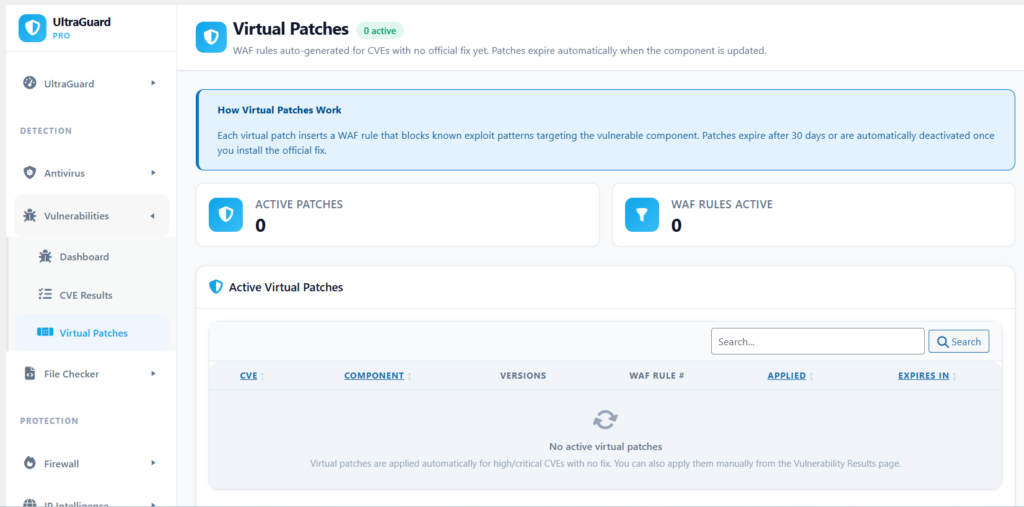
A virtual patch is a firewall rule — inserted directly into UltraGuard’s WAF engine — that blocks known exploit attempts for a specific CVE, even though the underlying vulnerability in the plugin code has not been fixed.
Think of it this way: the vulnerability is a hole in the wall. Fixing the vulnerability fills the hole. A virtual patch puts a security guard in front of the hole — anyone who tries to use that specific route to get in is blocked, even though the hole is still there.
When UltraGuard applies a virtual patch for a CVE, it:
- Generates a targeted WAF rule — a regex pattern specifically designed to block requests that attempt to exploit that CVE. The pattern targets the vulnerable component’s path combined with known exploit probe signatures:
eval,base64_decode,system,passthru,exec,phpinfo, path traversal attempts, and shell injection patterns. - Inserts the rule into the live WAF — the rule is added to UltraGuard’s
attack_patternstable, which the Firewall module actively enforces on every incoming request. The protection is immediate — no server restart, no plugin deactivation needed. - Links the patch to the CVE — a record in the
virtual_patchestable connects the CVE to its WAF rule, with an applied timestamp and a 30-day expiry. - Updates the vulnerability status — the finding in the results table is updated from
opentovirtual_patched, making it clear in the dashboard that this vulnerability is being actively mitigated.
Auto-Patching Logic
UltraGuard automatically applies virtual patches for vulnerabilities that meet two criteria:
- Severity is High or Critical (CVSS score 7.0 or above)
- No patch version exists yet — there is no plugin update available that fixes the issue
If a patch version is available (meaning: an updated plugin is ready and waiting in your WordPress dashboard), UltraGuard does not auto-apply a virtual patch. Instead it notifies you to update. The philosophy is: if an official fix exists, you should apply it — a virtual patch is a temporary measure, not a permanent solution.
For vulnerabilities with no available fix at all (abandoned plugins, zero-days before a patch ships), auto-patching provides immediate protection without any manual intervention.
When a Real Patch Ships
The virtual patch lifecycle is fully automated:
When the plugin is updated: UltraGuard hooks into WordPress’s upgrader_process_complete action. When a plugin or theme is updated and its new version is at or above the patched_in_version recorded for the CVE, UltraGuard automatically:
- Deactivates the virtual WAF rule (sets
is_active = 0) - Removes the virtual patch record
- Updates the vulnerability status to
patched
The virtual patch disappears automatically once the real patch is in place. There is nothing to clean up manually.
After 30 days: Virtual patches expire after 30 days by default. If the component has not been updated in that time, the patch is removed, the vulnerability status reverts to open, and you receive a fresh notification. This prevents stale rules from accumulating in the WAF without anyone noticing.
What Happens When a Vulnerability Is Found
Immediate Email Notification
When a scan finds any open vulnerability, UltraGuard sends an email alert to your admin address. The email includes:
- The total number of findings
- The number of critical findings specifically
- A breakdown of the top critical vulnerabilities with their CVE IDs
- A direct link to the Vulnerability Scanner dashboard to review and act
The Three Admin Pages
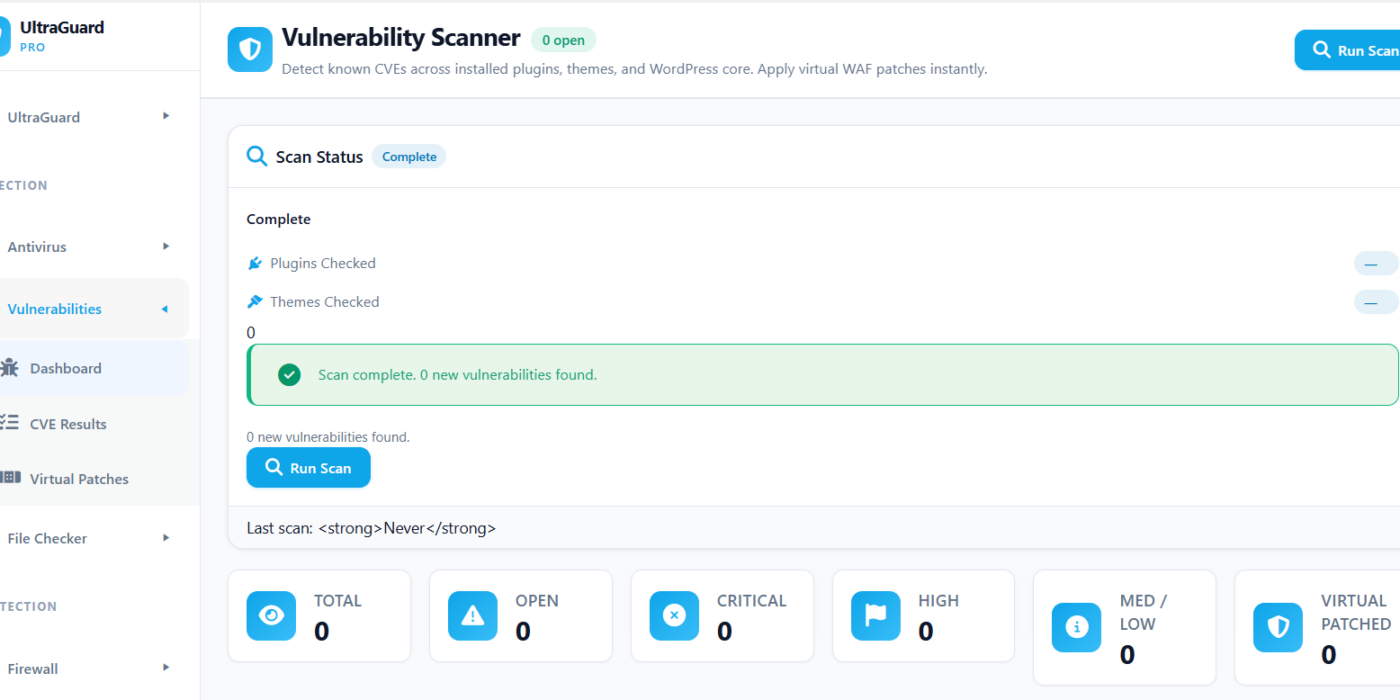
Vulnerability Scanner Dashboard — an overview with stat cards showing total findings, open findings, critical count, high count, and number of active virtual patches. A status card shows the last scan time and a live progress indicator during active scans. Buttons at the top launch a manual scan or stop one in progress.
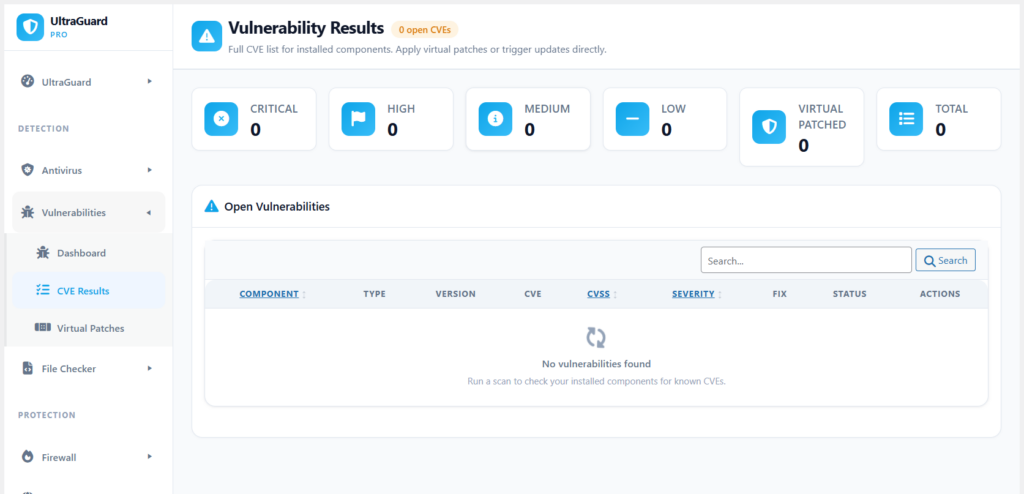
CVE Results — a full searchable table of every vulnerability ever detected on your site. Each row shows the component slug and type (plugin/theme/core), the CVE ID, title, severity badge, CVSS score, installed version, the version that fixes it, the data source, and current status. You can filter by severity and status.
Virtual Patches — shows all currently active virtual patches with the CVE they protect against, the component they cover, the WAF rule ID they generated, when they were applied, and when they expire. You can manually remove any patch from this page.
A Real-World Scenario
Imagine you installed a contact form plugin two years ago. You have not thought much about it since — it works fine, customers use it, everything looks normal.
A security researcher discovers a critical SQL injection vulnerability in that plugin. They report it. The plugin author is slow to respond. Three days after disclosure, the vulnerability is in the WPScan database with a CVSS score of 9.8 — Critical. Automated bots start scanning for sites running the vulnerable version within hours.
Without UltraGuard: Your site is exposed. Bots find you, send a crafted SQL injection payload through the contact form, dump your user table including hashed passwords, and plant a backdoor. You find out two weeks later when Google blacklists your domain.
With UltraGuard:
- The daily vulnerability scan runs overnight and finds the CVE
- Because it is Critical and has no patch version yet, auto-patching fires immediately
- A WAF rule is inserted that blocks requests containing known exploit patterns targeting that plugin’s path
- You receive an email notification within minutes
- The dashboard shows the vulnerability as
virtual_patched - Three days later the plugin author releases version 2.4.1 — the fix
- You see the update notification and apply it
- UltraGuard detects the update, removes the virtual patch, and marks the vulnerability as
patched
The window of exposure was three days. The window where you were actually vulnerable was zero — the virtual patch covered the entire gap between disclosure and fix.
Configuring the Scanner
WPScan API Key (Recommended)
Without an API key, the scanner uses Patchstack as its primary source, which covers most major vulnerabilities but has less comprehensive coverage than WPScan.
A free WPScan API account gives you 25 requests per day — sufficient for a site with up to 25 plugins and themes without hitting limits. For larger sites or agencies managing multiple sites, WPScan’s paid tier provides unlimited requests.
Get a free key at wpscan.com and enter it in the Vulnerability Scanner settings.
Manual vs Scheduled Scanning
The scanner runs automatically on a daily schedule as part of UltraGuard’s cron system. You can also trigger a scan manually at any time from the dashboard with the Run Scan button, and stop it mid-run with the Stop Scan button if needed.
Auto Virtual Patching
Virtual patching is enabled by default. When the scanner finds a High or Critical vulnerability with no available patch version, it automatically generates and activates the WAF rule without any manual action required. You can disable this in settings if you prefer to review and apply patches manually.
Email Notifications
Email alerts for critical findings are enabled by default. The notification is sent to your WordPress admin email address when any scan — scheduled or manual — finds open vulnerabilities.
All Settings at a Glance
| Setting | What It Does | Default |
|---|---|---|
| WPScan API Key | Enables primary CVE data source (25 req/day free) | Empty |
| Auto Virtual Patching | Automatically apply WAF patches for Critical/High with no fix | On |
| Notify on Critical Findings | Email alert when scan finds open vulnerabilities | On |
| Scan Schedule | Daily automated scan via WordPress cron | Daily |
Vulnerability Scanner Is a Pro Feature
The Vulnerability Scanner and Virtual Patching module requires UltraGuard Pro.
Pro — $149/year (1 site) Full CVE scanning via WPScan and Patchstack, auto virtual patching, daily scheduled scans, email notifications, virtual patch management dashboard.
Agency — $399/year (up to 20 sites) Everything in Pro across your entire client portfolio — run daily vulnerability scans across all managed sites and maintain virtual patches centrally.
The free version shows a preview of the Vulnerability Scanner dashboard with sample findings so you can see what the output looks like before upgrading.
Summary
| What UltraGuard Does | How |
|---|---|
| Scans every plugin for known CVEs | WPScan API → Patchstack API → local signatures |
| Scans every theme for known CVEs | Same three-source approach |
| Scans WordPress core | WPScan core API |
| Identifies your specific risk | Compares installed version vs fixed-in version |
| Shows severity with CVSS score | Critical (9.0+) / High (7.0+) / Medium (4.0+) / Low |
| Blocks exploits while you wait for a patch | Virtual WAF patching — live firewall rule per CVE |
| Auto-applies protection for Critical/High | No manual action needed for the most dangerous findings |
| Removes protection when real patch ships | Hooks into WordPress updater — fully automatic |
| Expires stale patches after 30 days | Cron cleanup prevents rule accumulation |
| Alerts you immediately | Email notification on every scan with findings |
| Provides compliance evidence | Findings feed into PCI-DSS and Security Audit reports |
The gap between a CVE being published and your site being exploited can be hours. The gap between a CVE being found by UltraGuard and your site being protected is seconds.
View Pro Plans → Download UltraGuard Free →
UltraGuard Vulnerability Scanner is part of UltraGuard Pro Security Suite v6.7.2. Requires a Pro or Agency licence. WordPress 5.6+ and PHP 8.1+ required.